
You can easily install and use MYGEM VPN on your Windows device to protect your online activity and access content securely.
1. Download the MYGEM VPN App
- Click here to download: https://mygemvpn.com/downloads/apps/mygemvpn.exe
- Click Download for Windows
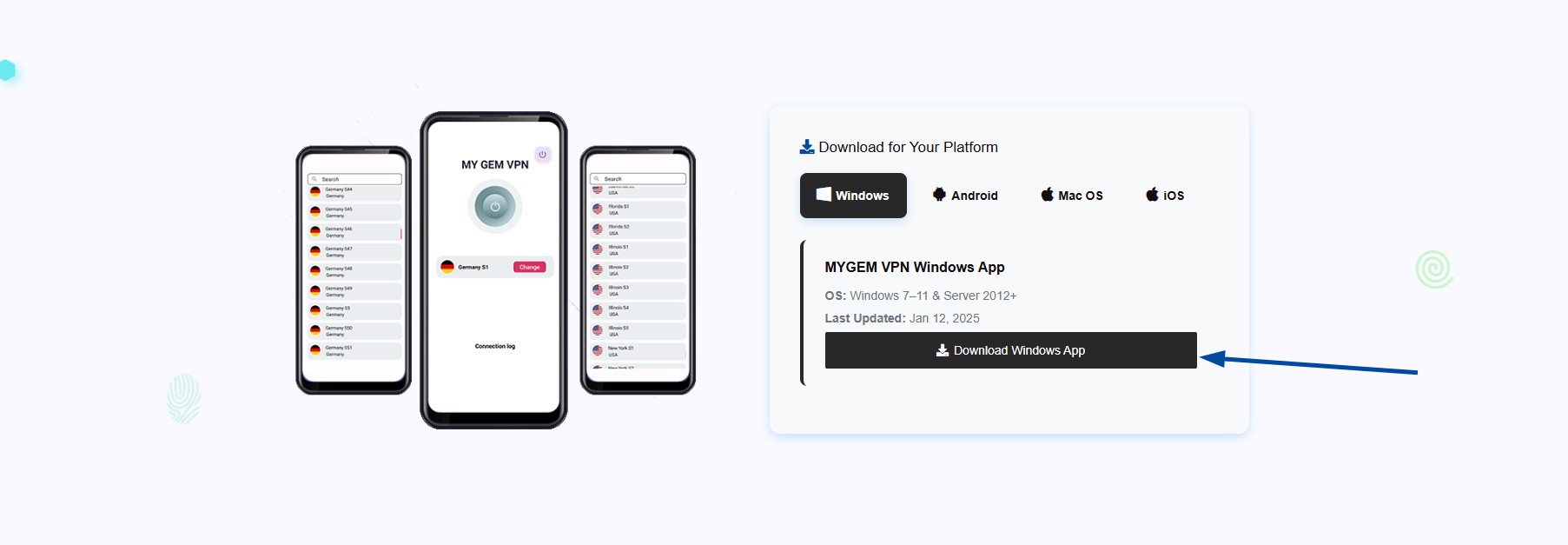
- Once downloaded, open the installer file (for example,
mygemvpn.exe)
2. Install the Application
- Follow the on-screen setup instructions
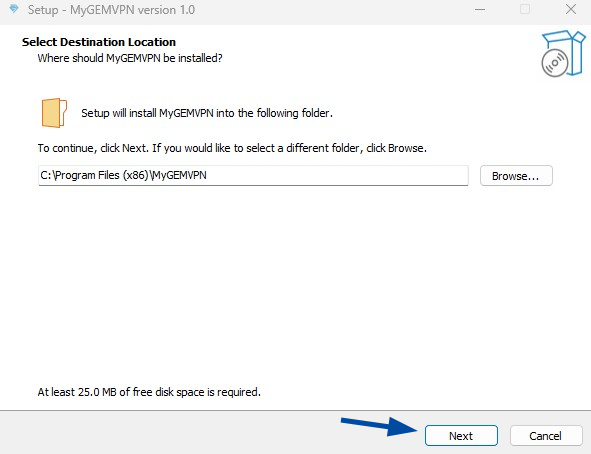
- Click Next to select the installation location.
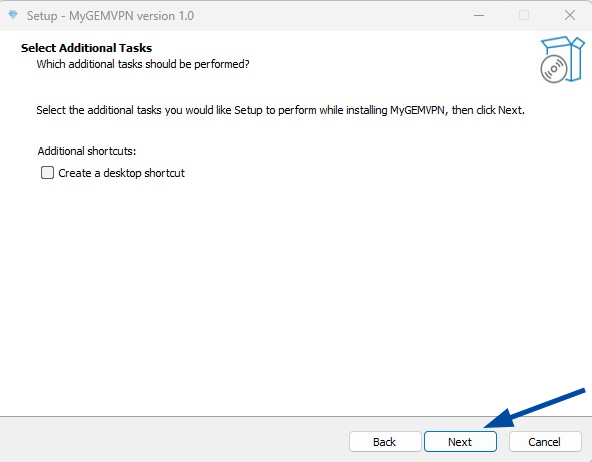
- Click Next on the "Select Additional Tasks" screen.
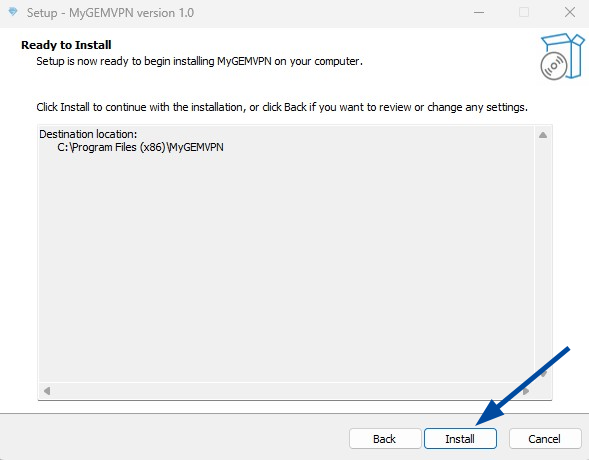
- Click Install on the "Ready to Install" screen.
- Allow any permissions or prompts from Windows during installation
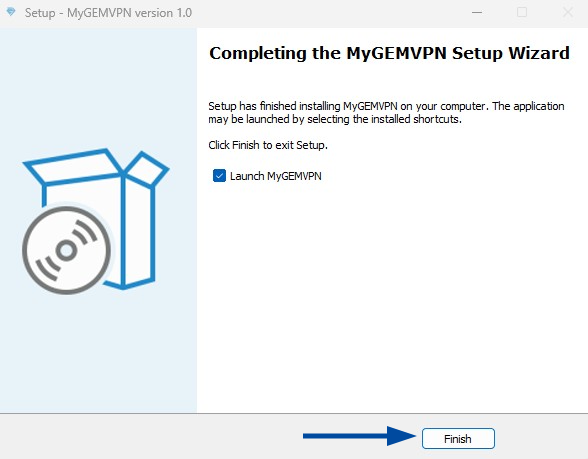
- Once installation completes, click Finish (with "Launch MyGEMVPN" checked) to launch the MYGEM VPN app.
3. Log In to Your Account
- Open the MYGEM VPN app
- Enter your email address and password
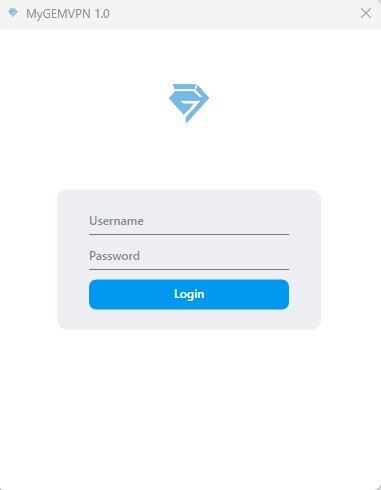
- Click Log In to access your account
If you don’t have an account yet, visit mygemvpn.com and create one before logging in.
4. Connect to a Server
- After logging in, you’ll see the Server List
- Choose your preferred country or location
- Click Connect to start the VPN connection
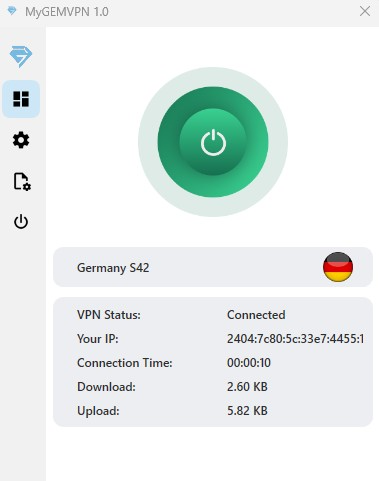
Once connected, the app will display a confirmation, and your IP address will be secured.
5. Disconnecting the VPN
To stop the VPN:
- Open the app
- Click Disconnect
You can reconnect anytime with one click.
6. Troubleshooting
If you face connection issues:
- Ensure your internet connection is active
- Try another server location
- Run the app as Administrator
- Disable third-party firewalls or antivirus temporarily if blocking the VPN
If the issue continues, reach out to support.
7. Need Help?
Our support team is available 24/7 to assist with setup or troubleshooting.
Email: support@mygemvpn.com