
You can easily install and start using MYGEM VPN on your Android phone or tablet within minutes.
1. Download the App
- Open the Google Play Store on your Android device.
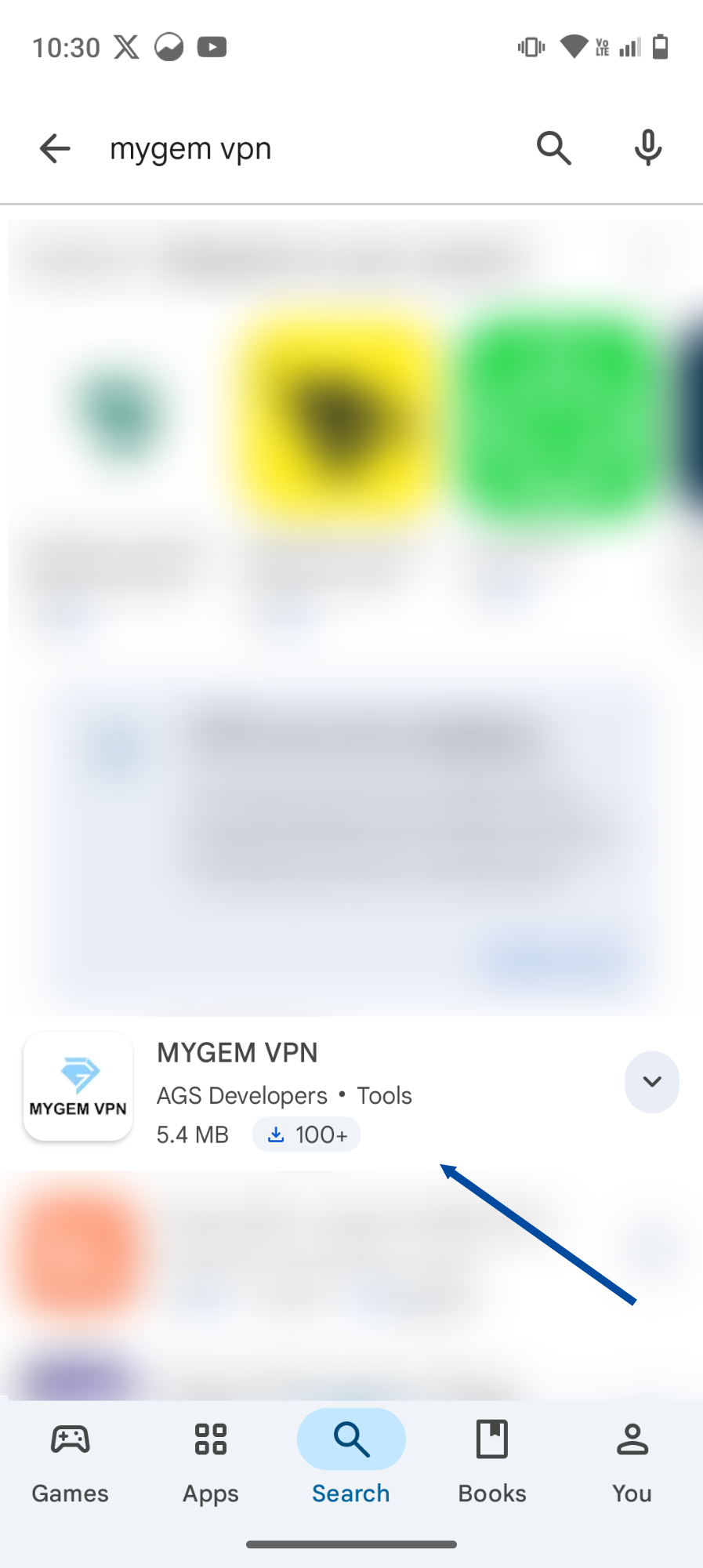
- Search for “MYGEM VPN”.
- Locate the MYGEM VPN app by AGS Developers.
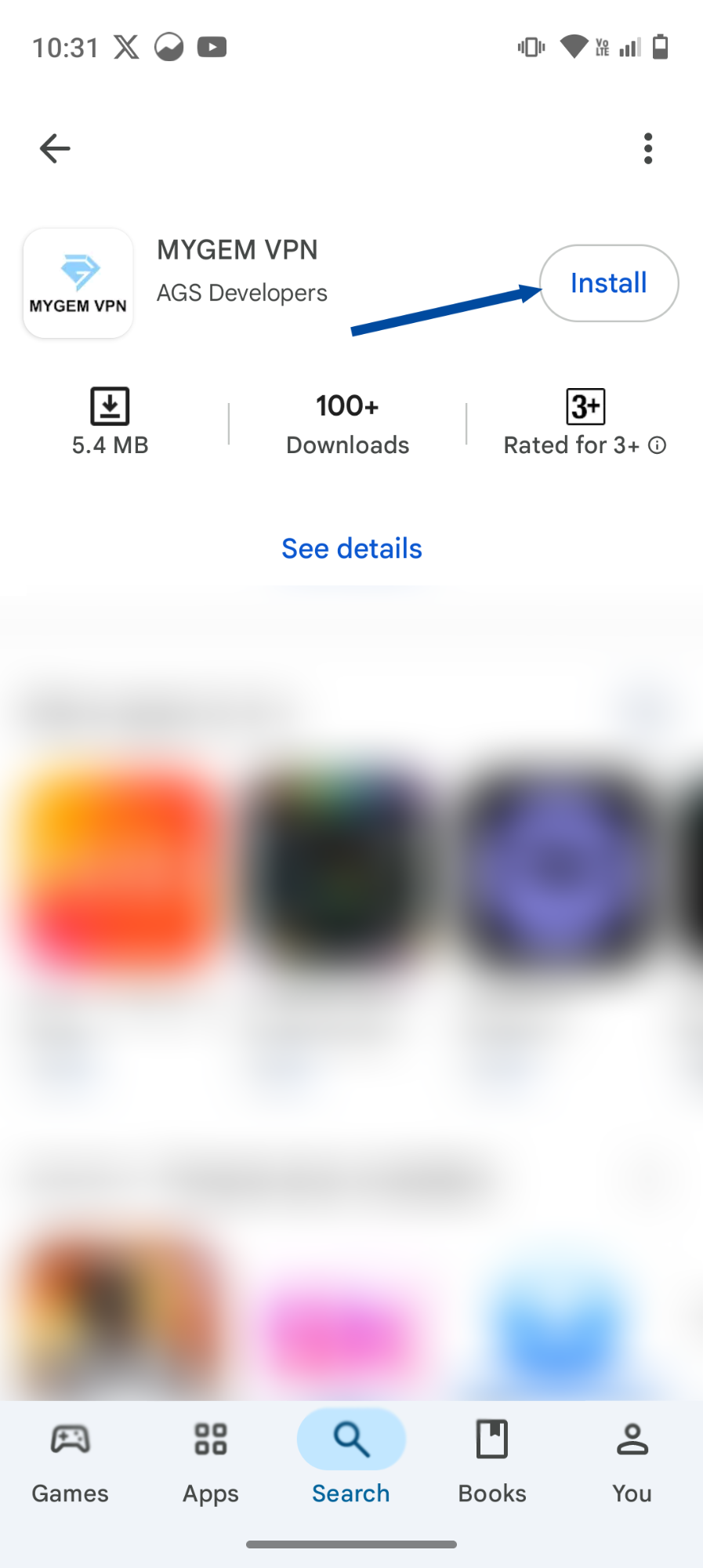
- Tap Install to download and install the app.
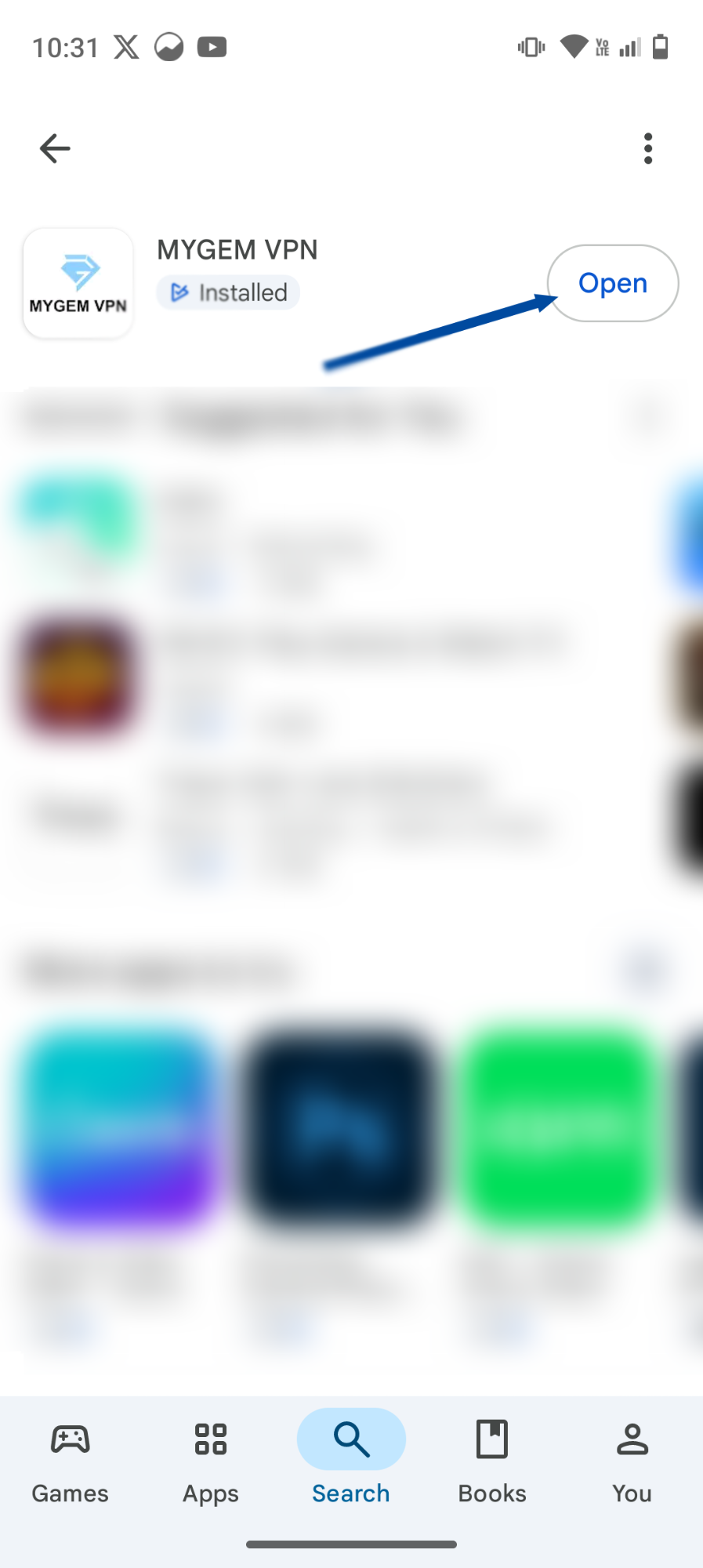
- Once installed, tap Open to launch the app.
Alternatively, you can download it directly from our website:
mygemvpn.com/download
2. Log In or Create an Account
- Open the MYGEM VPN app after installation.
- Tap Log In if you already have an account.
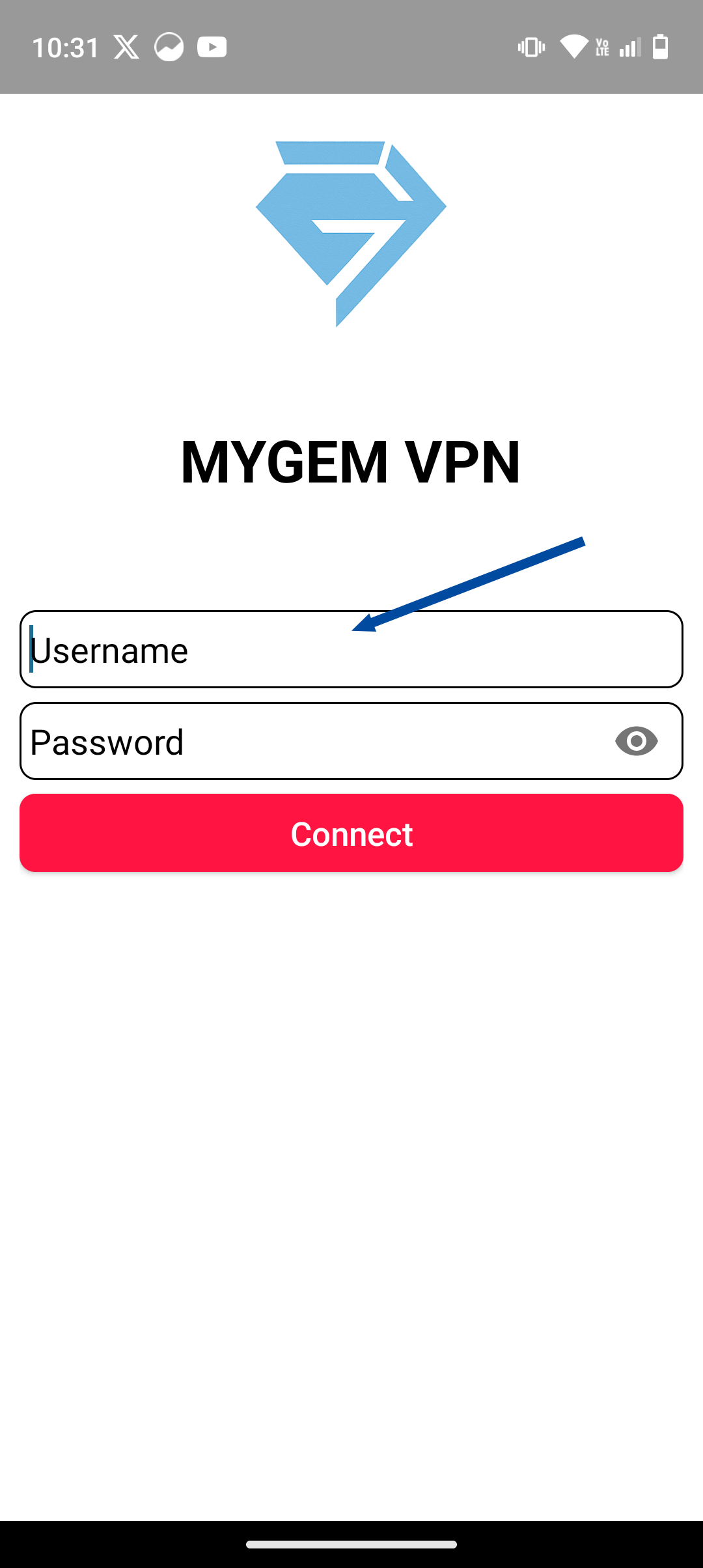
- Enter your credentials and tap Connect (or Log In).
- If you’re new, tap Sign Up and create your MYGEM VPN account using your email address.
3. Choose a Server and Connect
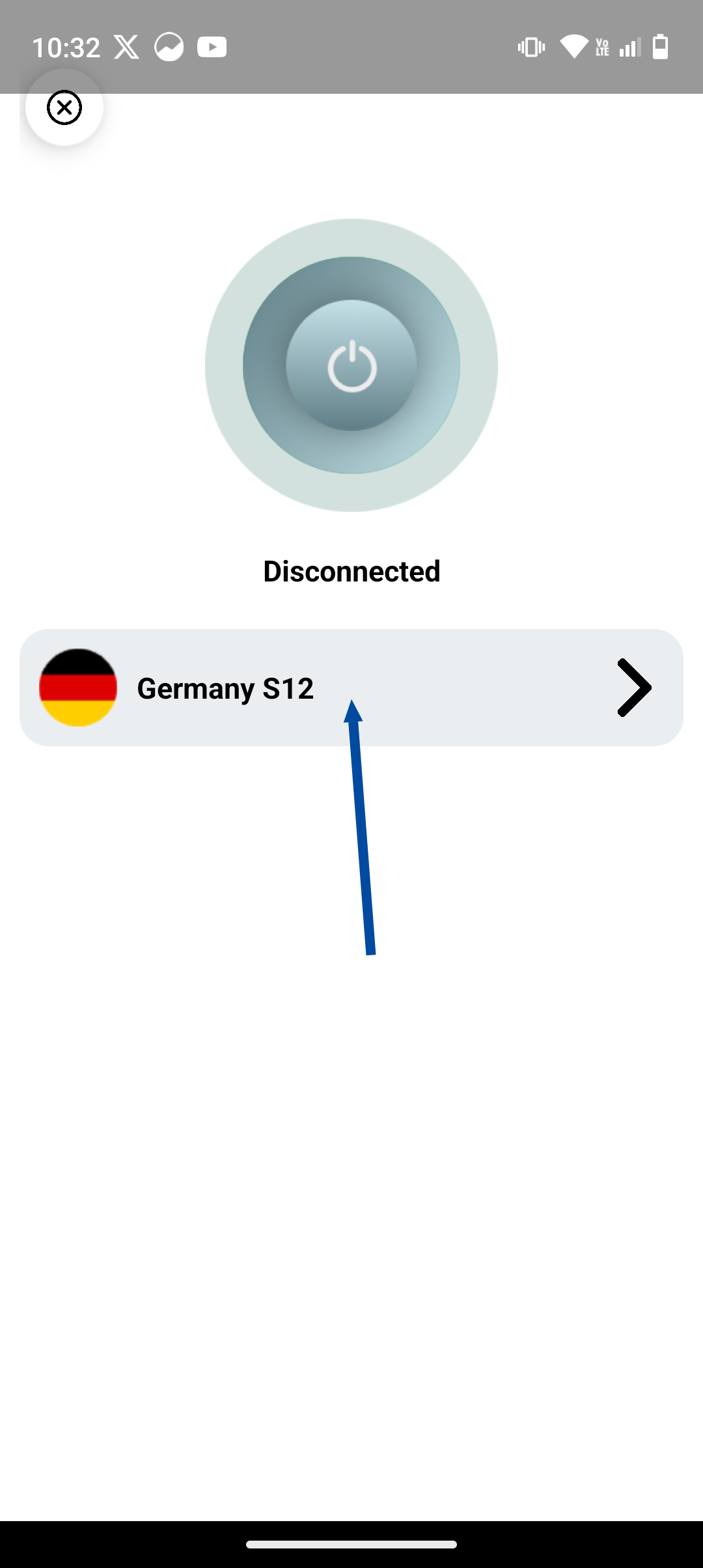
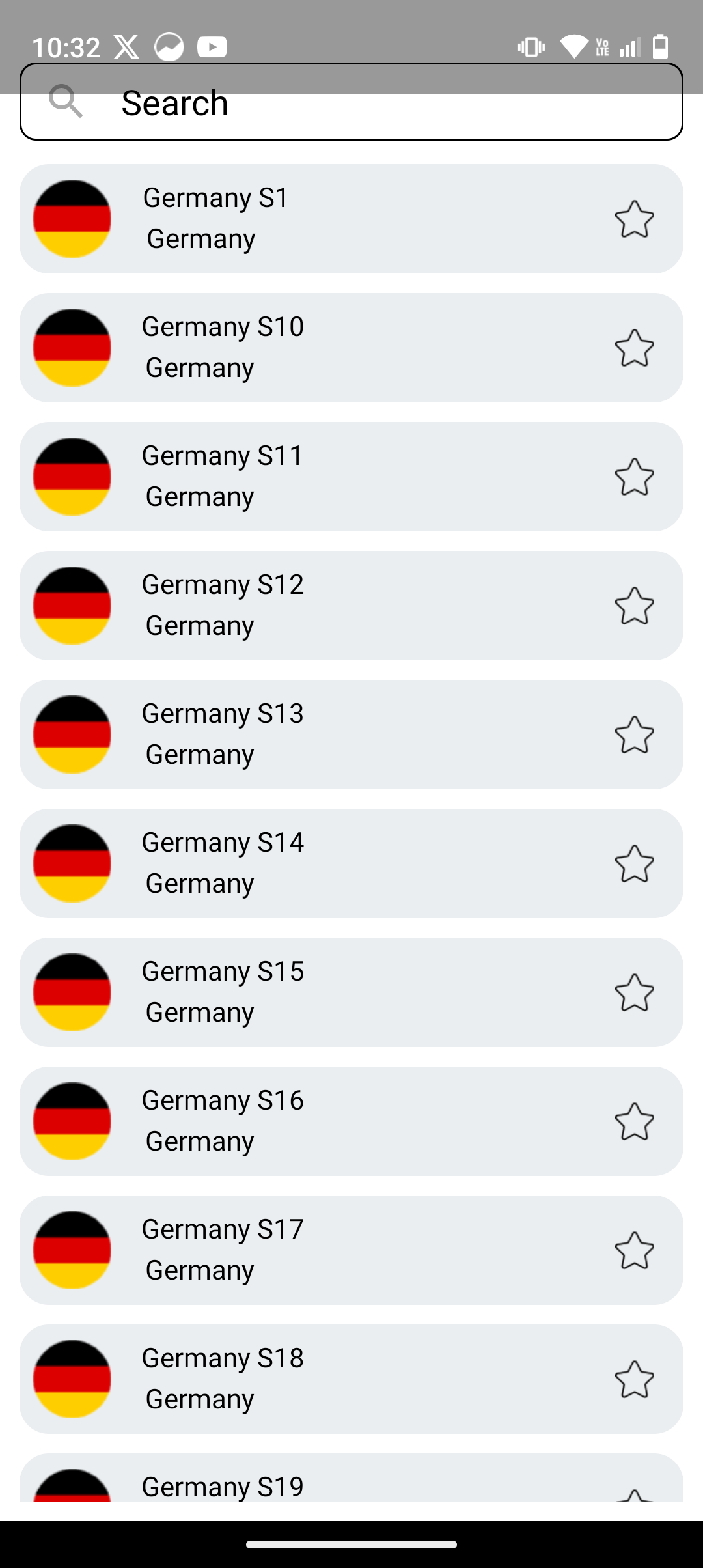
- Once logged in, you will see a main screen. If a server isn't selected, tap the server name (e.g., "Germany S12") to view available countries.
- Select your preferred server location from the list (e.g., Germany S1).
- Tap the **power icon** (or **Connect**) on the main screen.
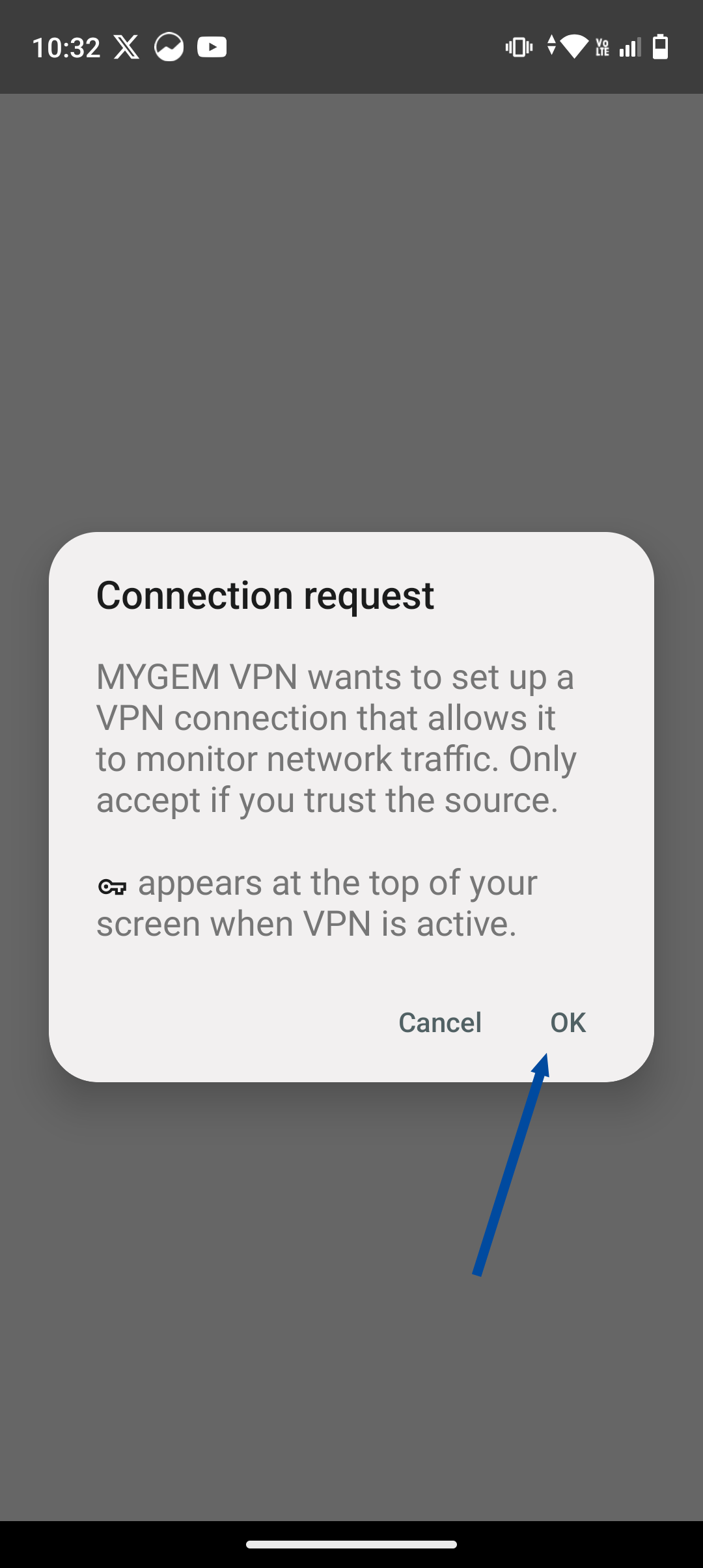
- You may see a **Connection request** prompt. Tap **OK** to allow the app to set up the VPN connection.
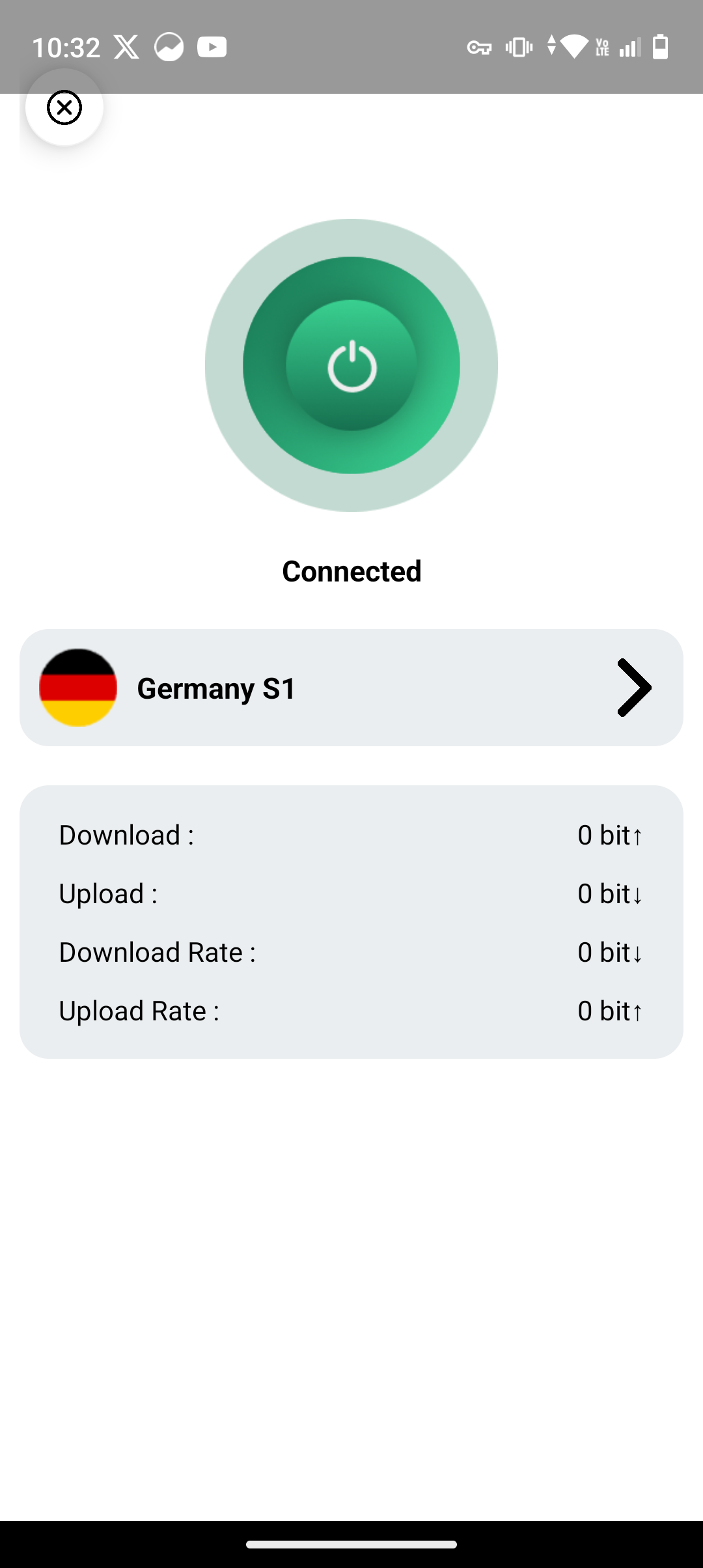
- The VPN will establish a secure connection within seconds.
When connected successfully, you’ll see the status change to **Connected** and a **key icon** or **VPN symbol** at the top of your screen.
4. Disconnecting the VPN
To stop using the VPN:
- Open the MYGEM VPN app.
- Tap the **power icon** (which will be green/on) to **Disconnect**.
You can reconnect anytime by choosing a server again.
5. Troubleshooting
If you face issues connecting:
- Make sure your internet connection is active.
- Try switching to a different server.
- Restart your device if needed.
- If the problem continues, contact support for help.
6. Need Help?
If you need assistance setting up or troubleshooting MYGEM VPN on Android, our team is available 24/7.
Email: support@mygemvpn.com