
Installation Guide
Windows Installation Guide
Step-by-step installation guide for MYGEM VPN on Windows PC
Last updated: October 27, 2026
Step 1: Download the Windows Setup File
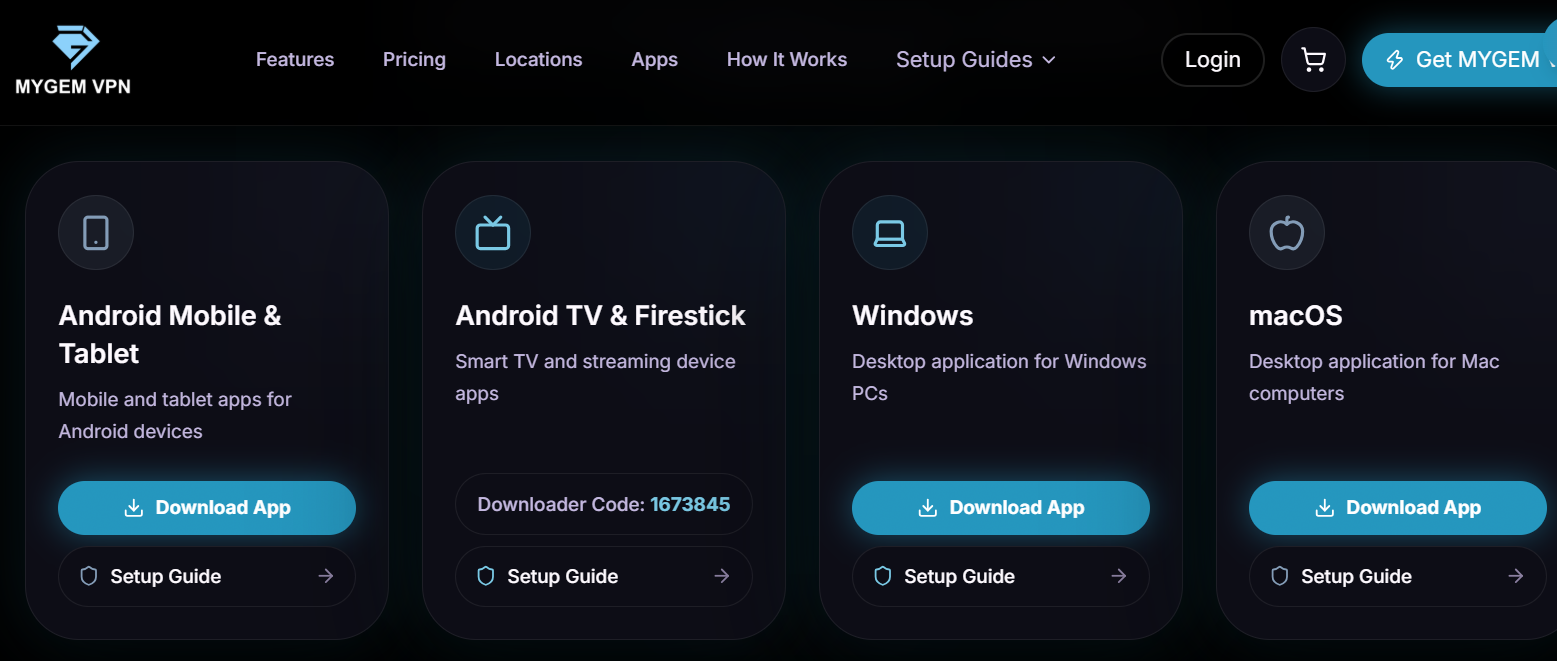
Navigate to the MYGEM VPN download section on this website. Click the "Download for Windows" button to download the setup file.
Step 2: Run the Downloaded Setup File
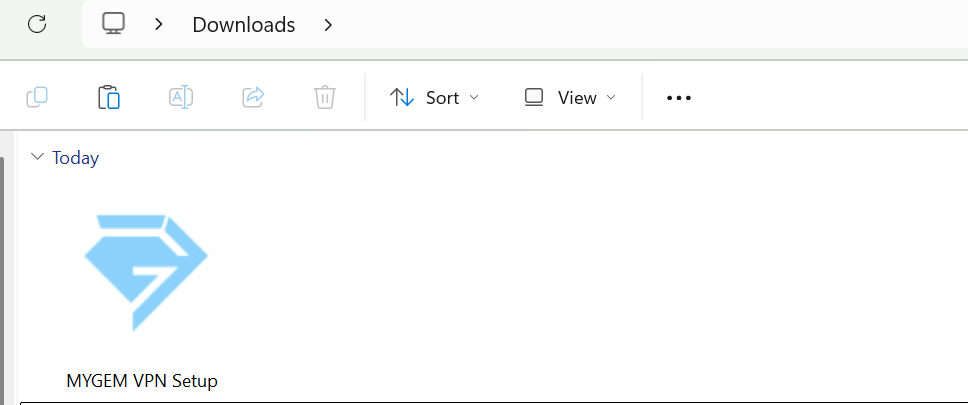
Open your Downloads folder and double-click the "MYGEM VPN Setup.exe" file to launch the installer.
Step 3: Click on "More Info"
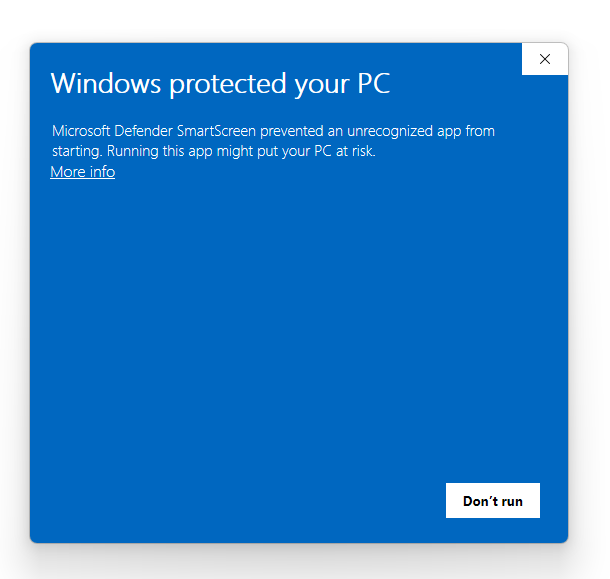
When Windows SmartScreen displays a security warning, click "More info" to see additional options.
Step 4: Click on "Run Anyway"
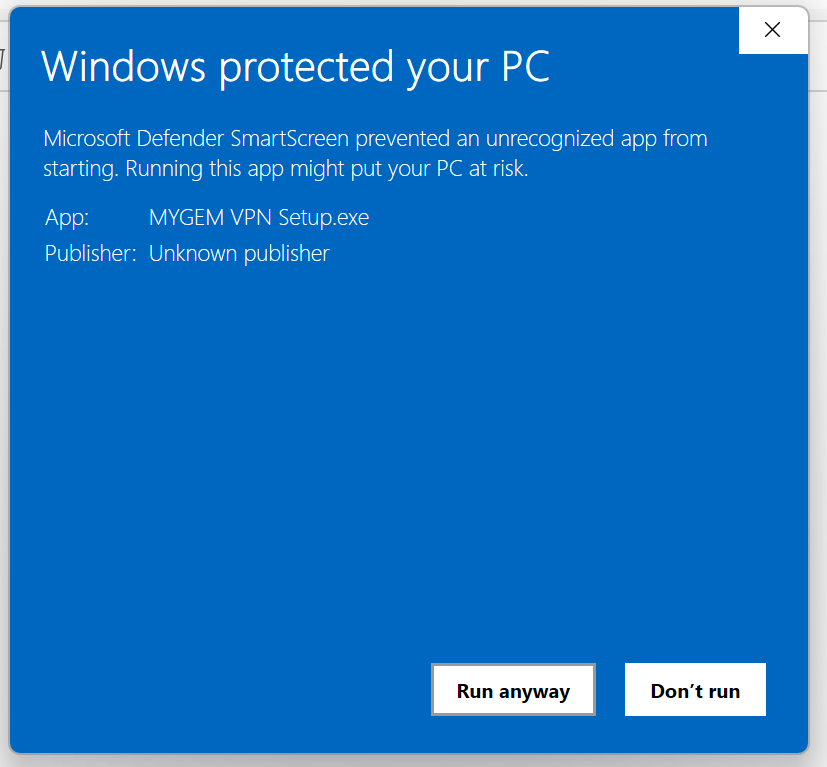
After clicking "More info", click "Run Anyway" to proceed with the installation.
Step 5: Click on "Install"
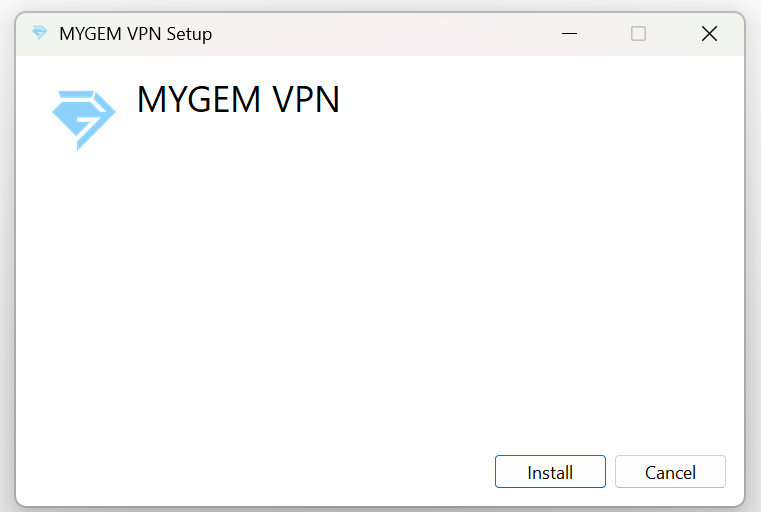
In the installation wizard, click "Install" to begin the installation process.
Step 6: User Account Control - Click "Yes"
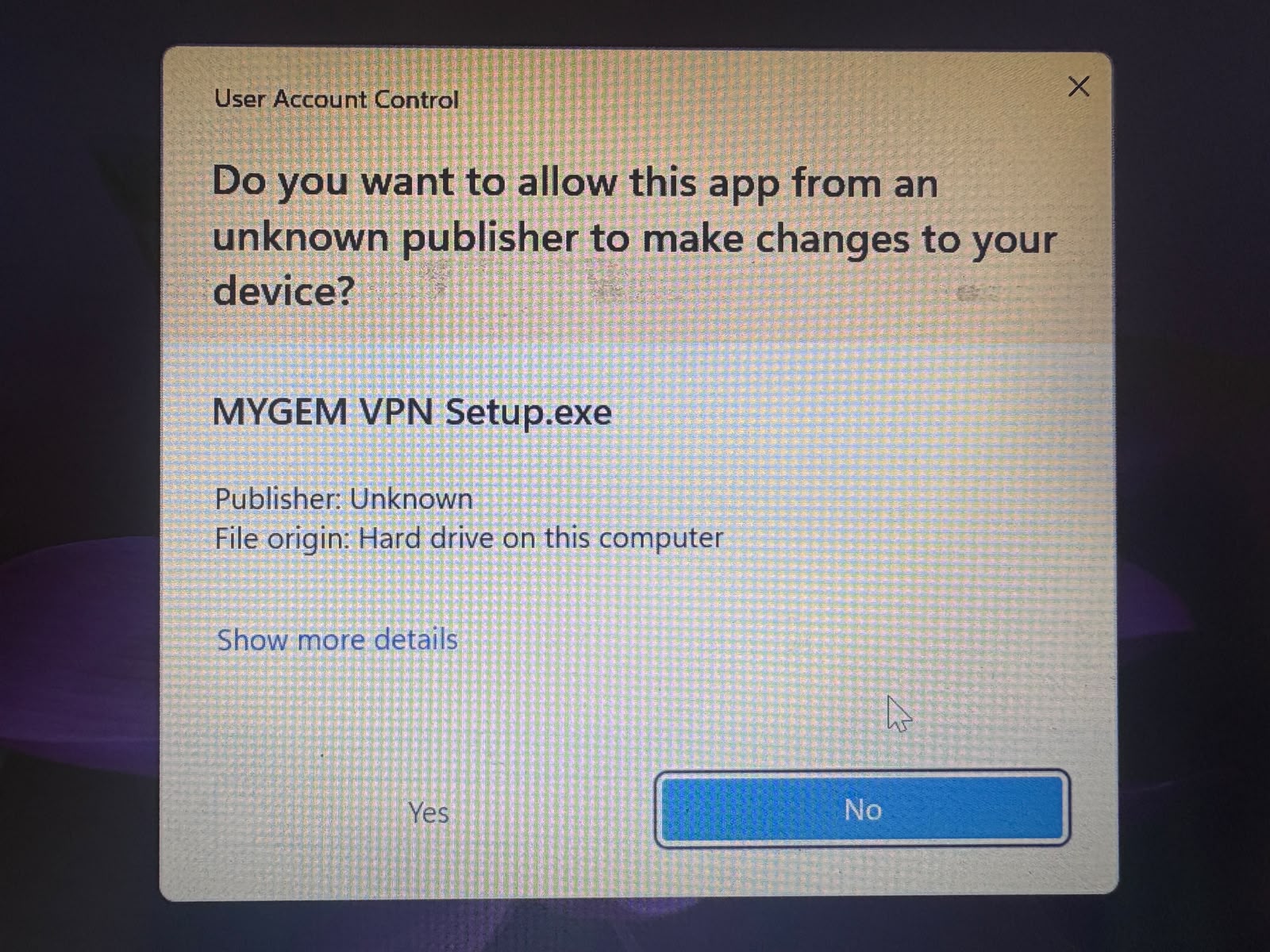
When the User Account Control popup appears, click "Yes" to allow the app to make changes to your device.
Step 7: Installation Complete
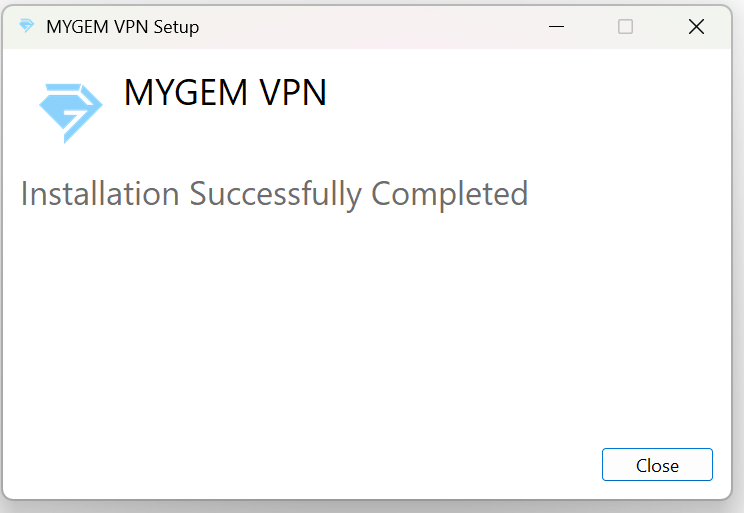
The installation is now complete. Click "Close" to close the installer.
Step 8: Search MYGEM VPN in Start Menu
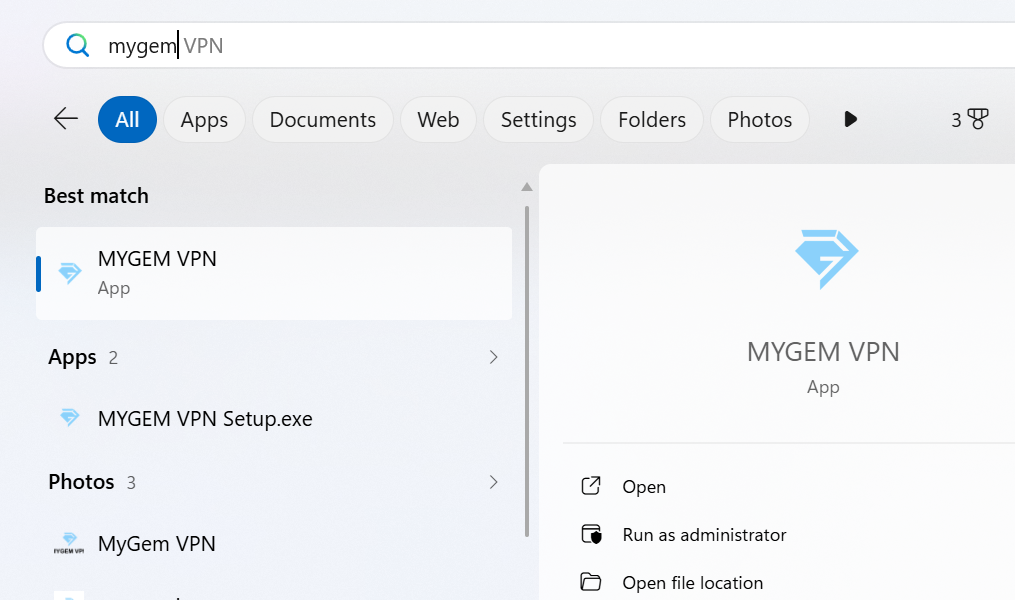
Open the Start menu and search for "MYGEM VPN" to find and launch the application.
Step 9: App Login Preview
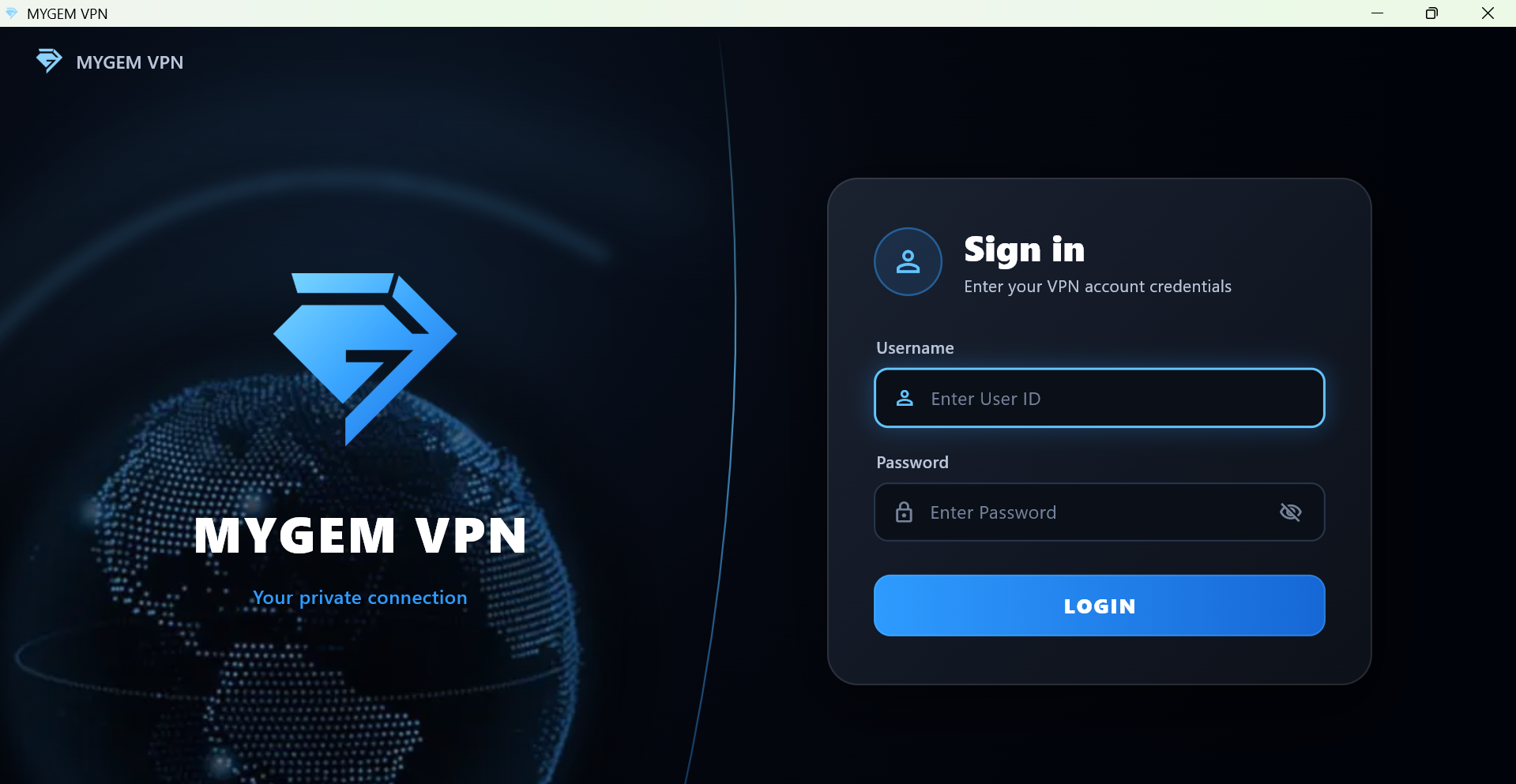
The MYGEM VPN app login screen will appear. Enter your credentials to sign in.
Step 10: Choose Server and Connect
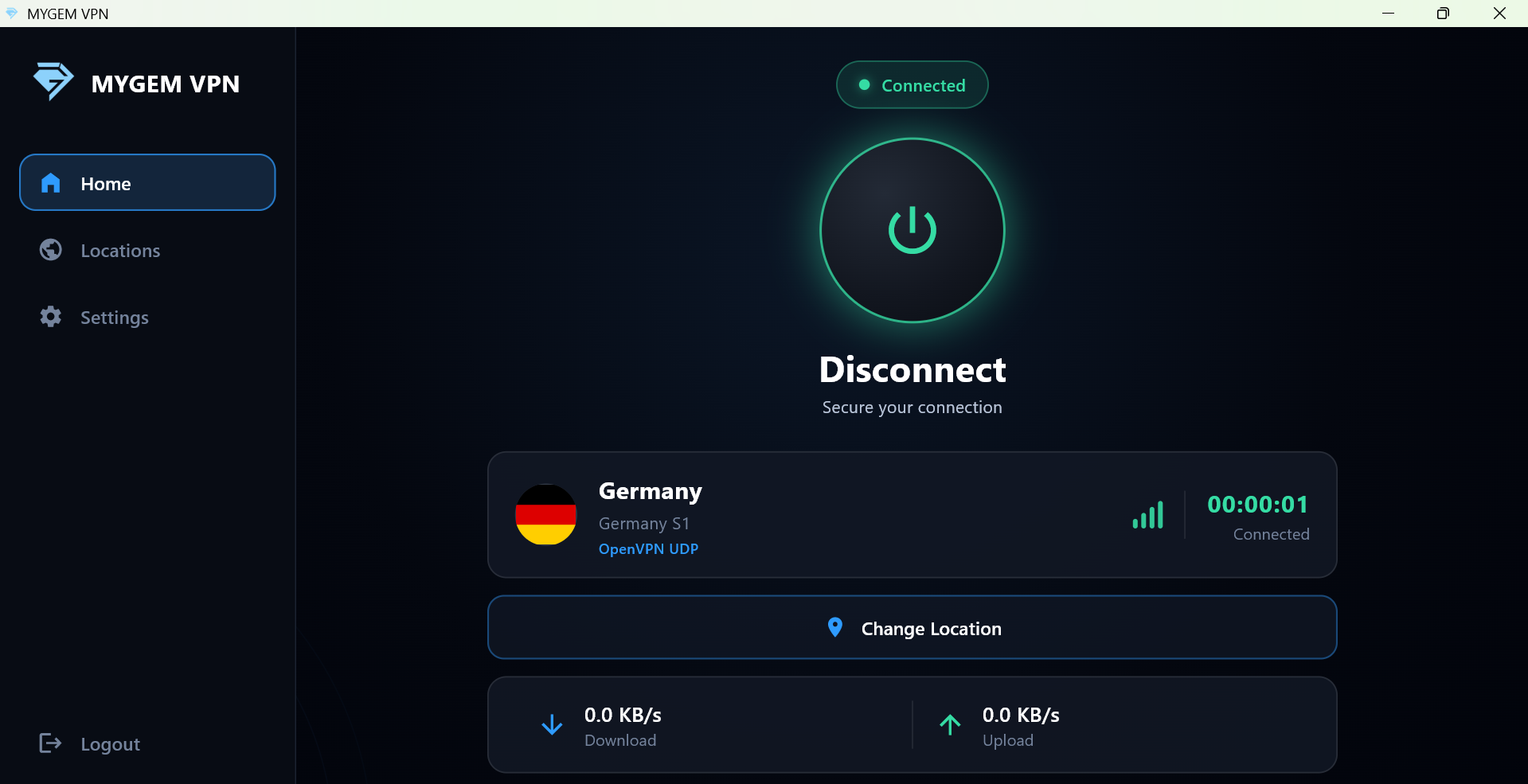
After logging in, select your preferred server location from the server list and click the "Connect" button to establish a secure VPN connection.
Installation Complete!
Your MYGEM VPN app is now installed and connected on your Windows PC. The VPN will run in the background, protecting your internet connection while you use other applications. To disconnect, simply click the "Disconnect" button in the app.