
Installation Guide
macOS Installation Guide
Step-by-step installation guide for MYGEM VPN on Mac computers
Last updated: October 27, 2026
Step 1: Download the macOS App
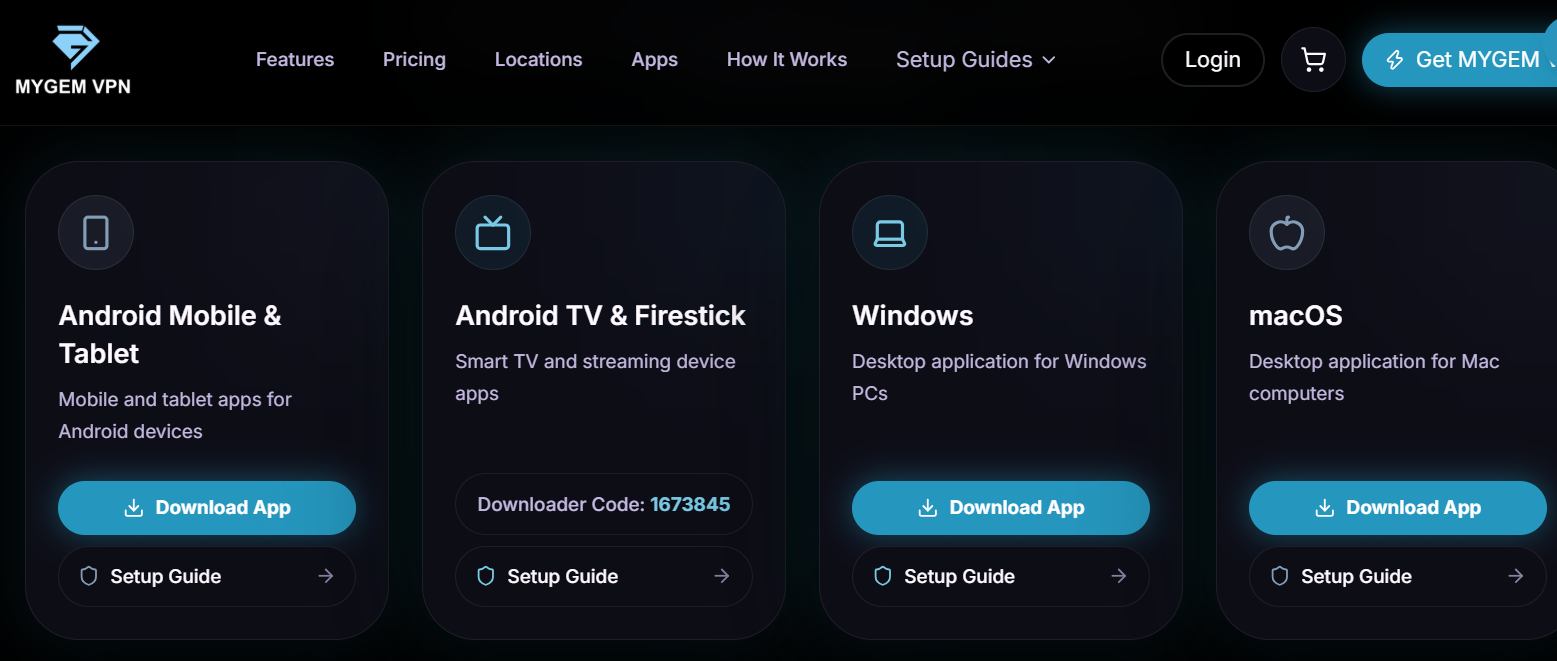
Navigate to the MYGEM VPN download section on this website and click "Download for macOS". The installer file will be saved to your Downloads folder.
Step 2: Open the Downloaded File
Open your Downloads folder and double-click the "MYGEM VPN.pkg" file to launch the installer.
Step 3: Click Continue
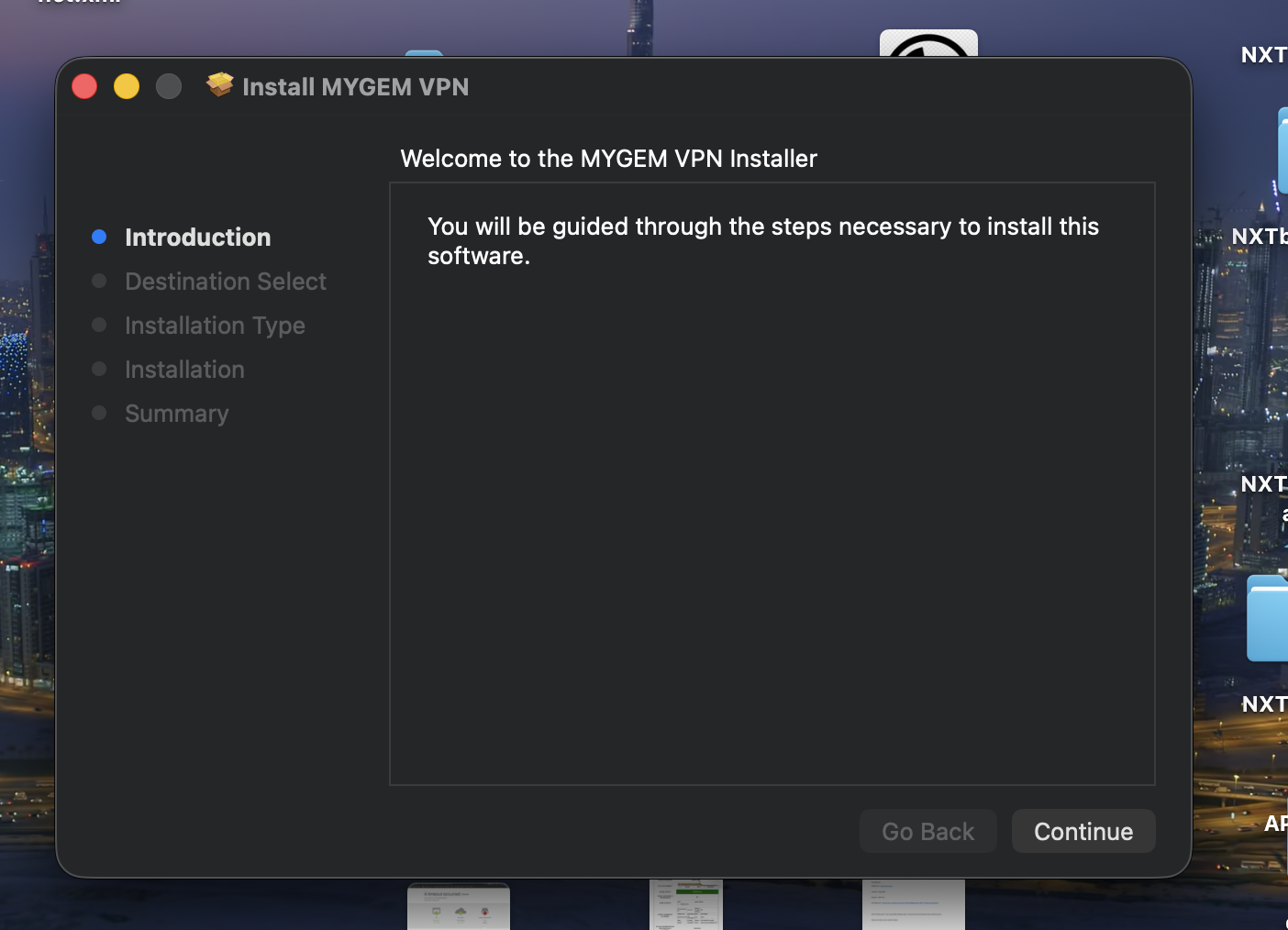
In the installation wizard, click "Continue" to proceed with the installation.
Step 4: Click Install
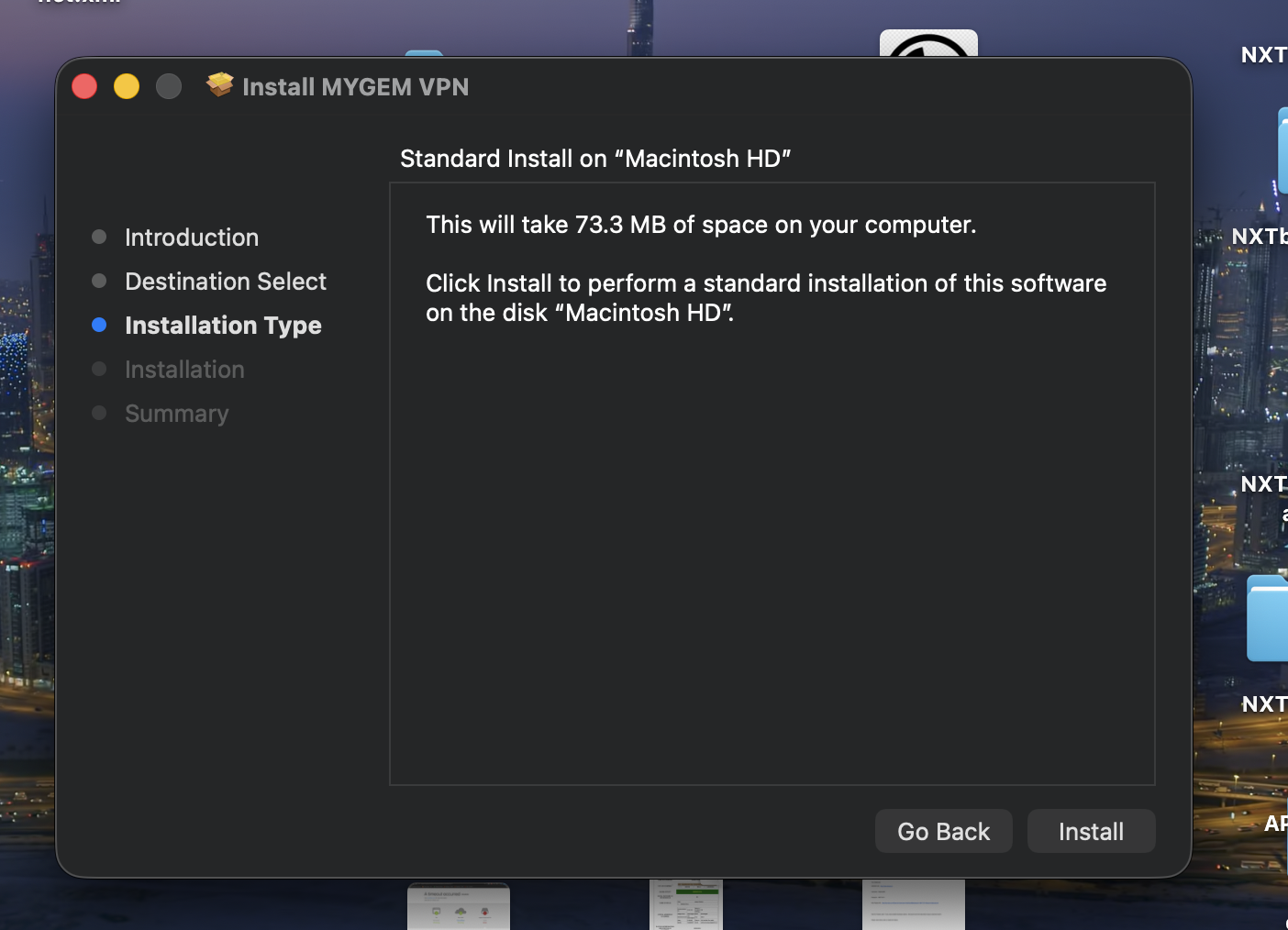
Review the installation information and click "Install" to begin the installation process.
Step 5: Installation Complete
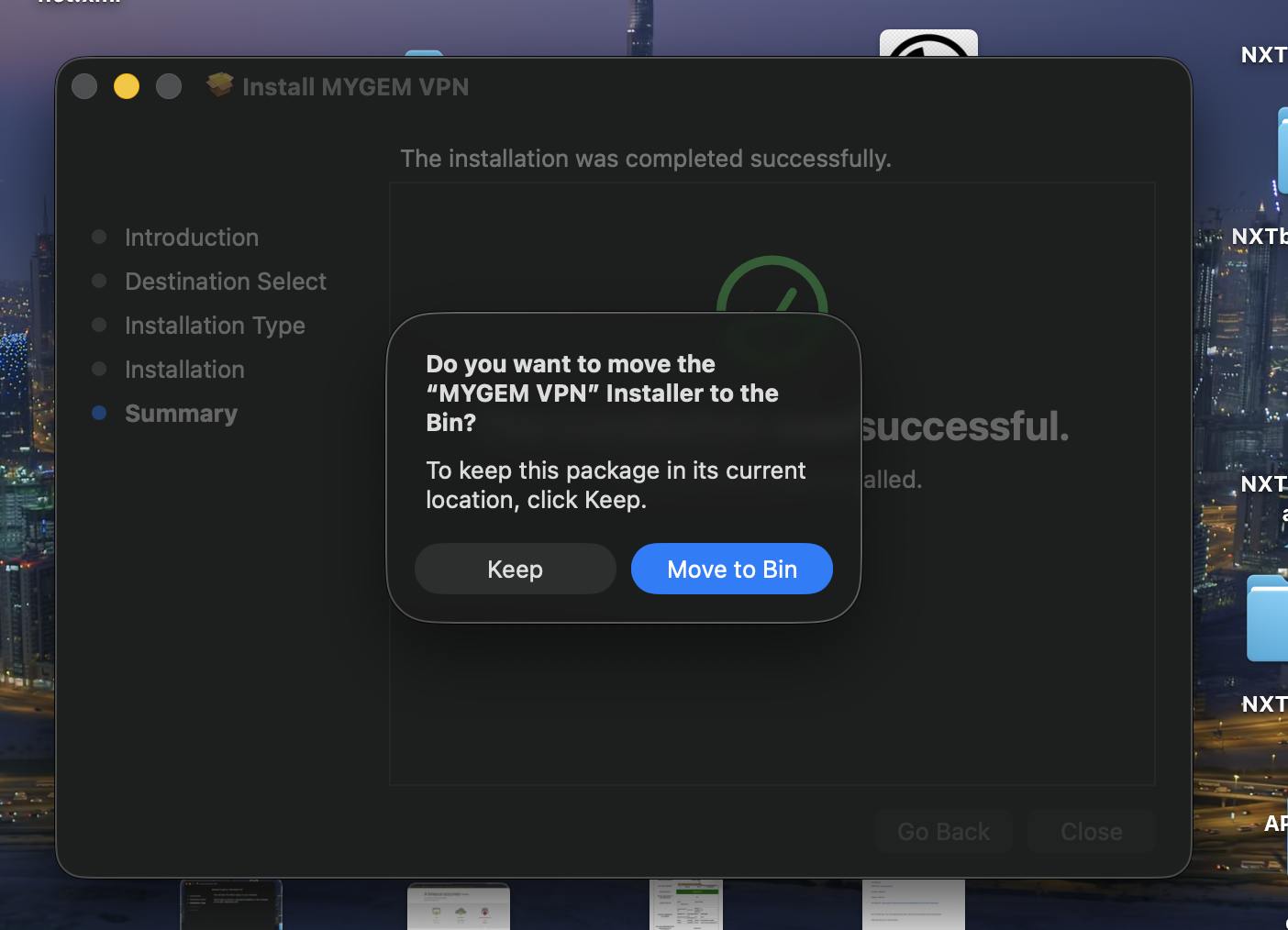
The installation is now complete. Click "Close" to close the installer.
Step 6: Move to Applications
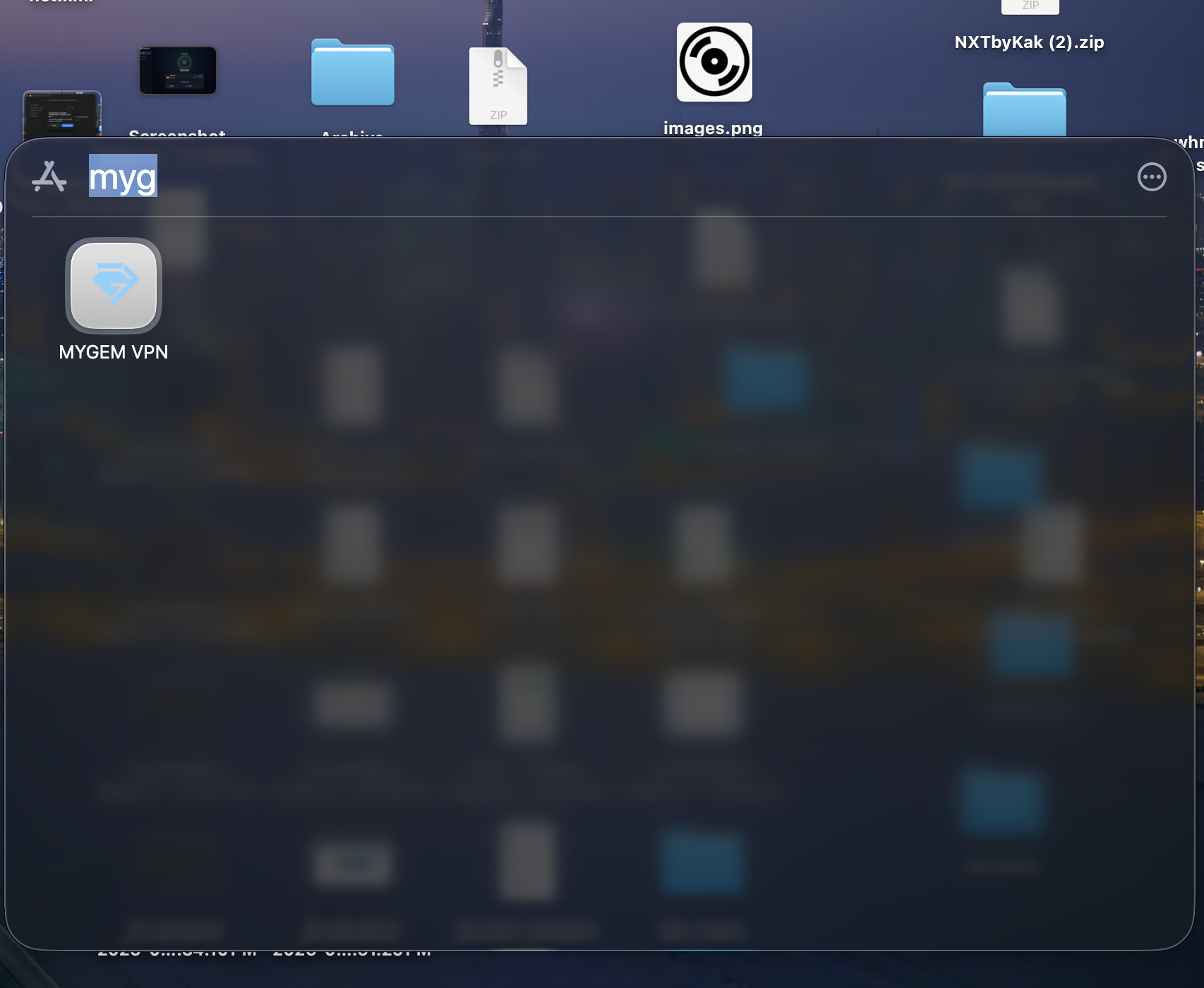
The "Move to Applications" popup will appear. Click "Move to Applications Folder" to complete the installation.
Step 7: Launch MYGEM VPN
Open Launchpad or the Applications folder and click the MYGEM VPN icon to start the app.
Step 8: Sign In to Your Account
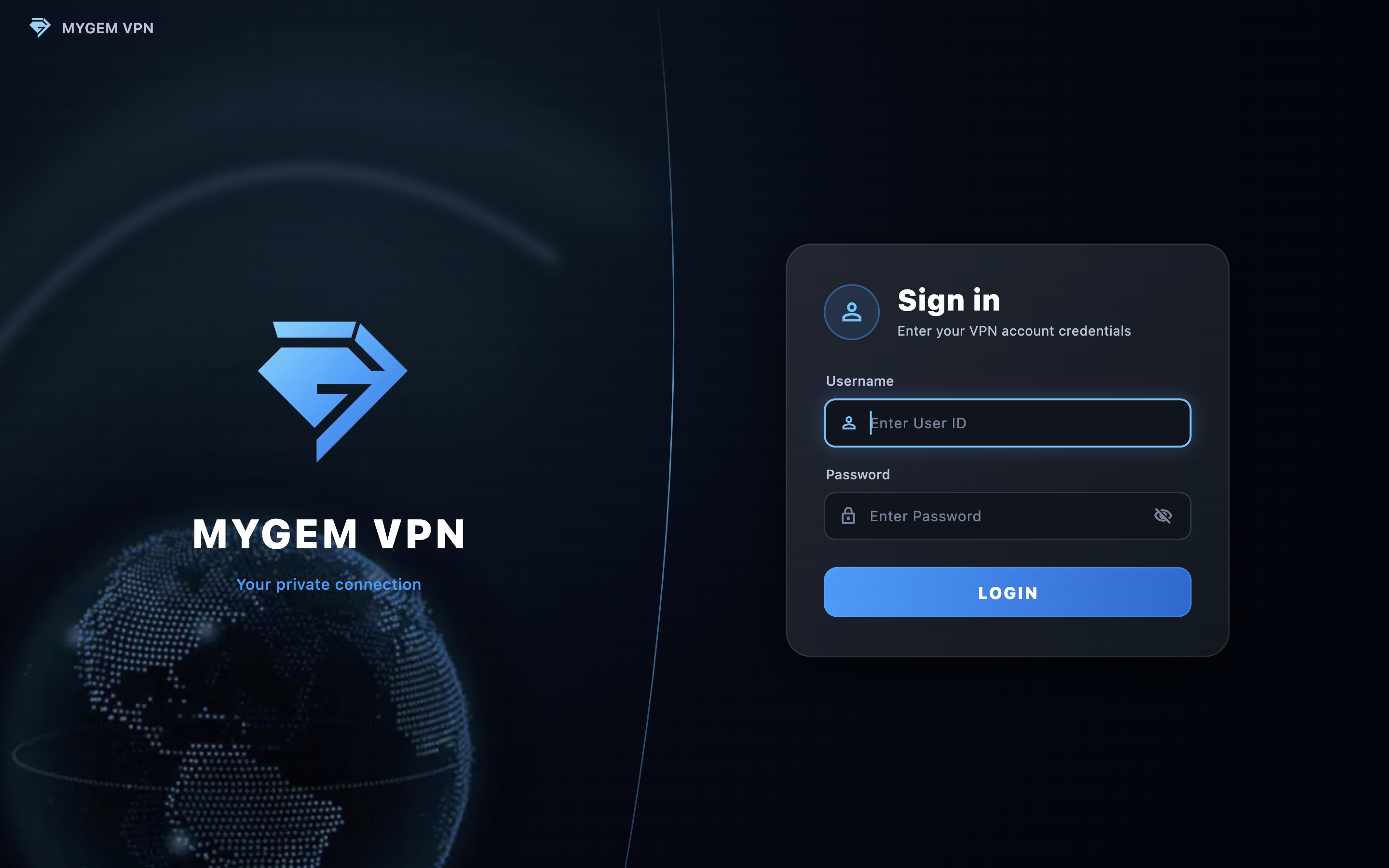
Enter the email address and password you use for your MYGEM VPN account, then click "Sign In" to connect.
Step 9: Select Server and Connect
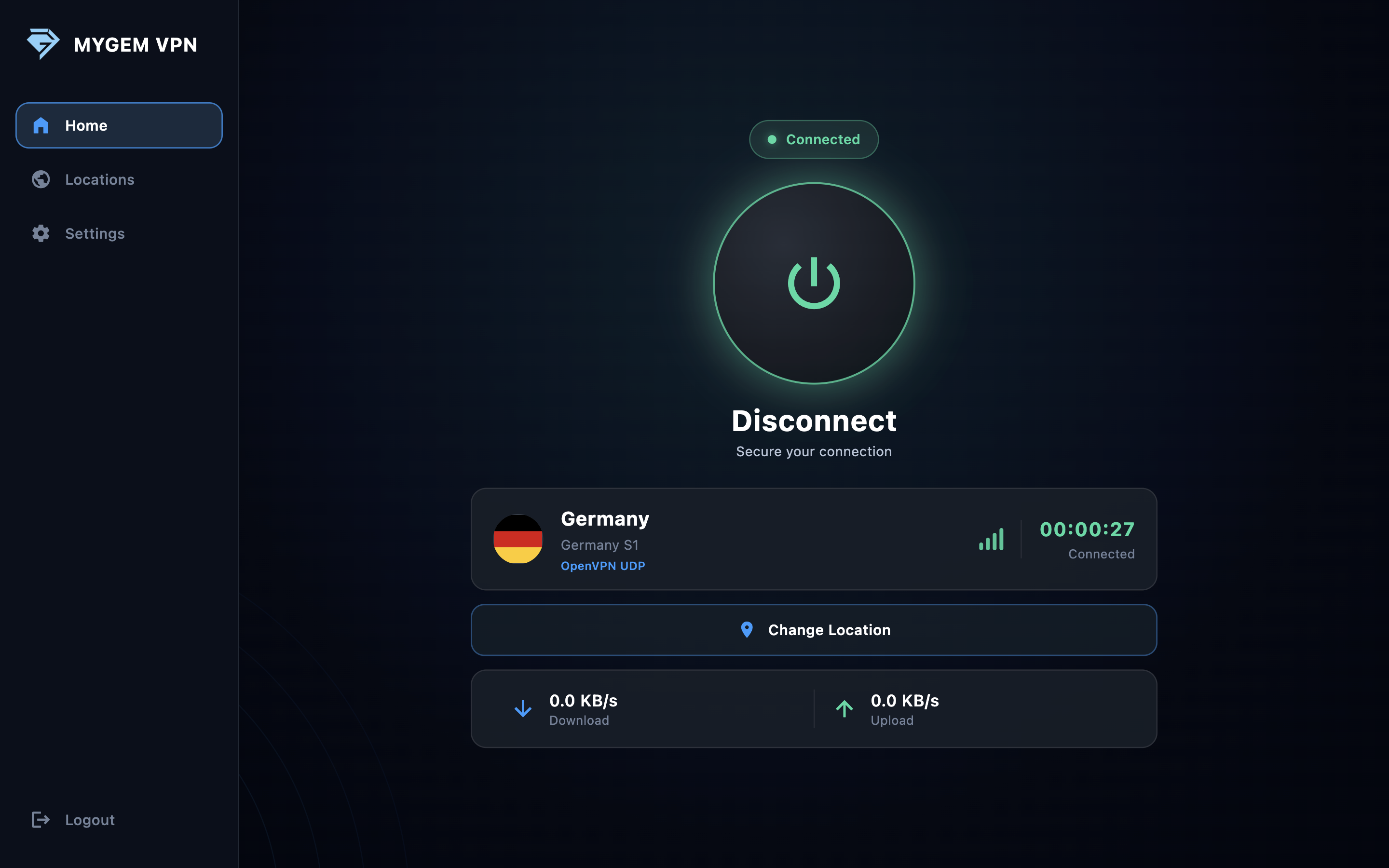
After logging in, select your preferred server location from the server list and click the "Connect" button to establish a secure VPN connection.
Installation Complete!
Your MYGEM VPN app is now installed and connected on your Mac. The VPN will run in the background, protecting your internet connection while you use other applications. To disconnect, simply click the "Disconnect" button in the app.