Installation Guide
Android TV & Firestick Installation Guide
Step-by-step installation guide for MYGEM VPN on Android TV and Firestick devices
Last updated: October 27, 2026
Step 1: Open Google Play Store
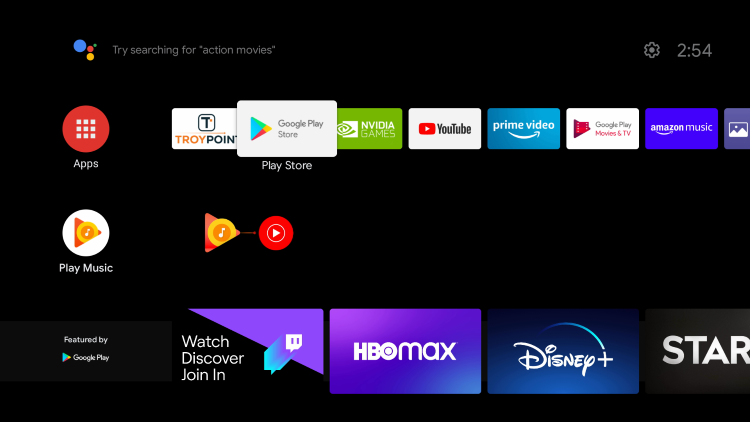
Open the Google Play Store on your Android TV Box or Firestick device.
Step 2: Type in downloader
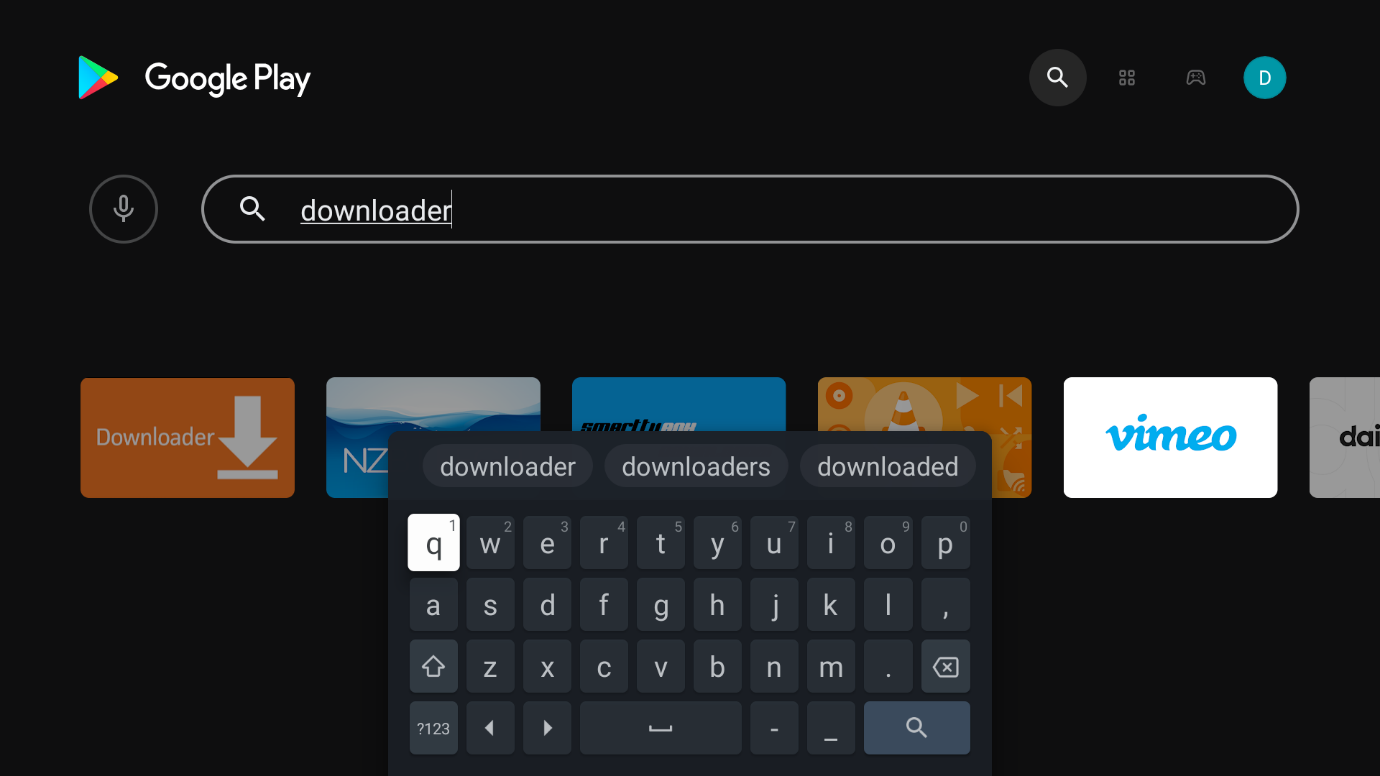
Use your remote to type "downloader" in the search field.
Step 3: Select the downloader app
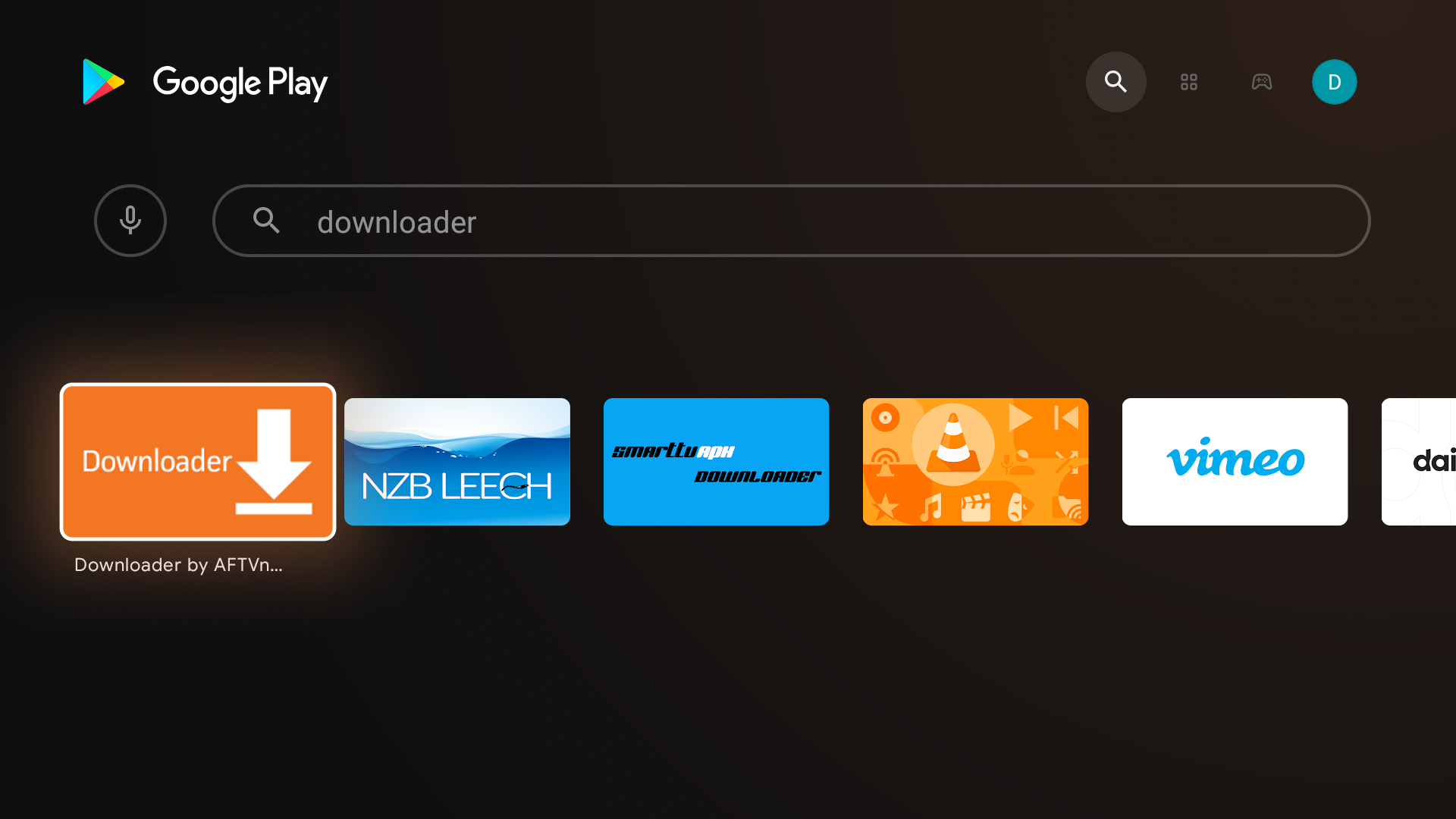
Select the Downloader app from the search results.
Step 4: Select Download
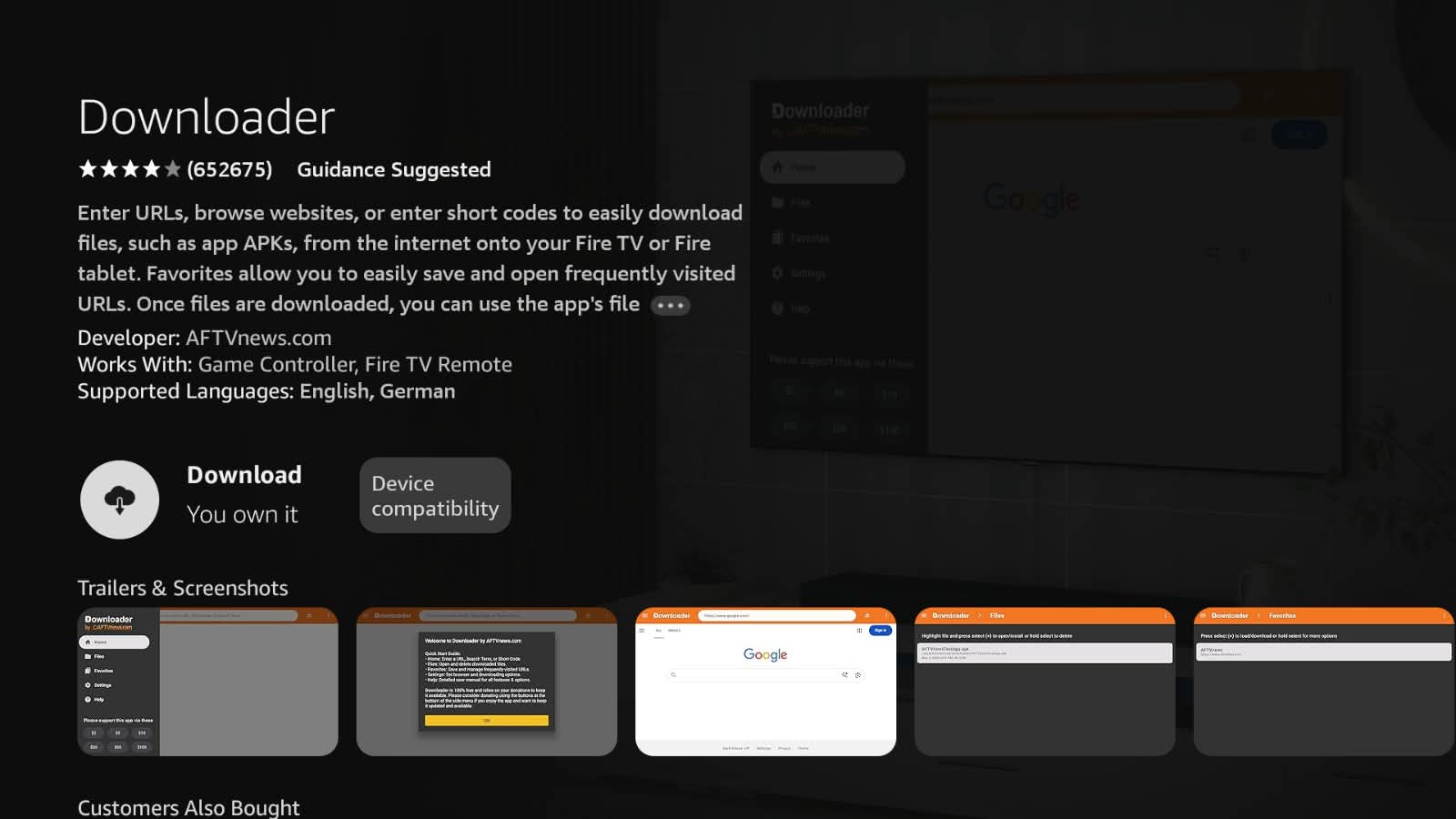
Select the Download button to install the Downloader app.
Step 5: Select open
Step 6: Select Allow when prompted
Step 7: Select OK
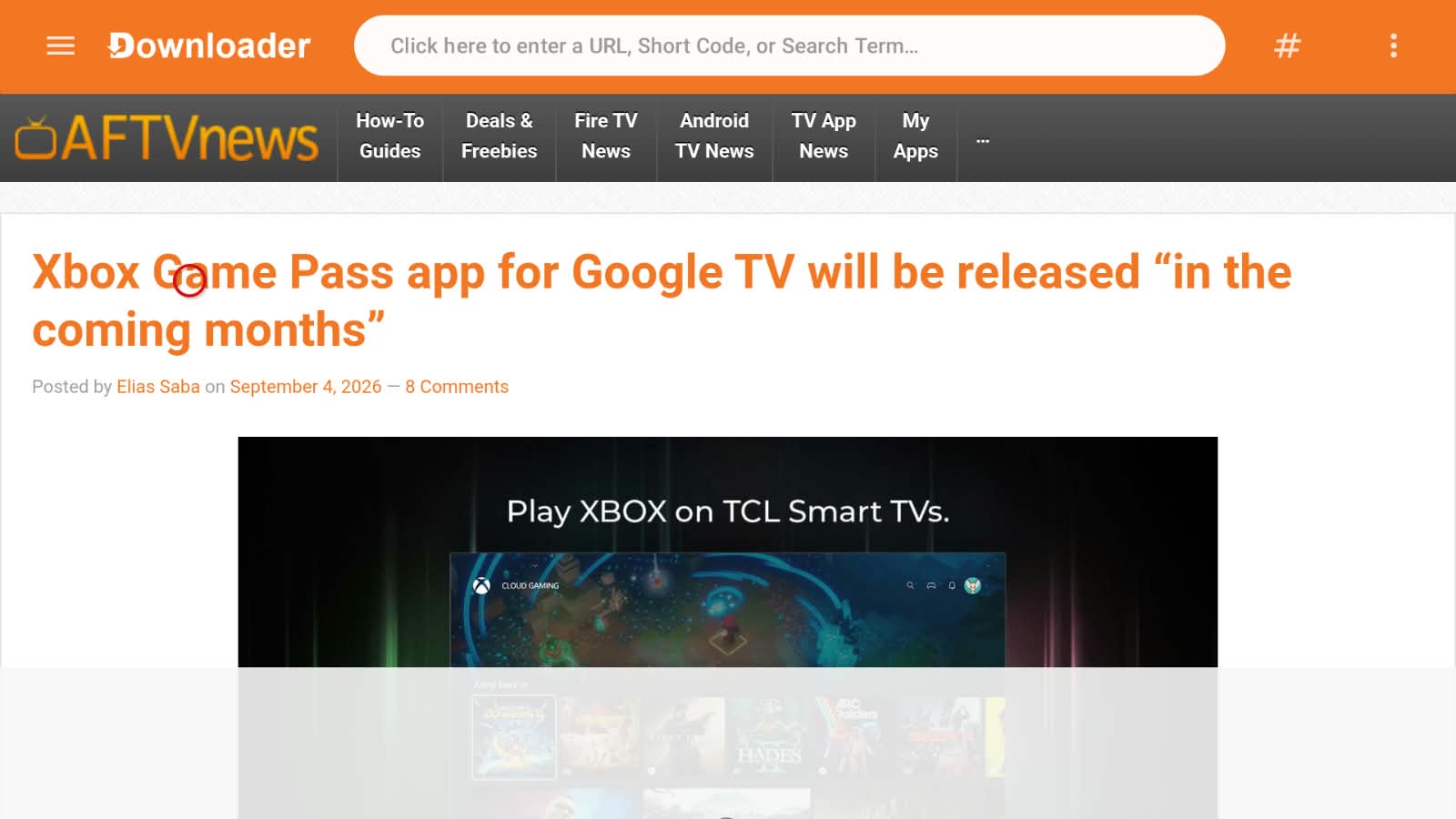
Select OK to confirm and proceed.
Step 8: Enter Downloader Code 1673845 and then select Next button
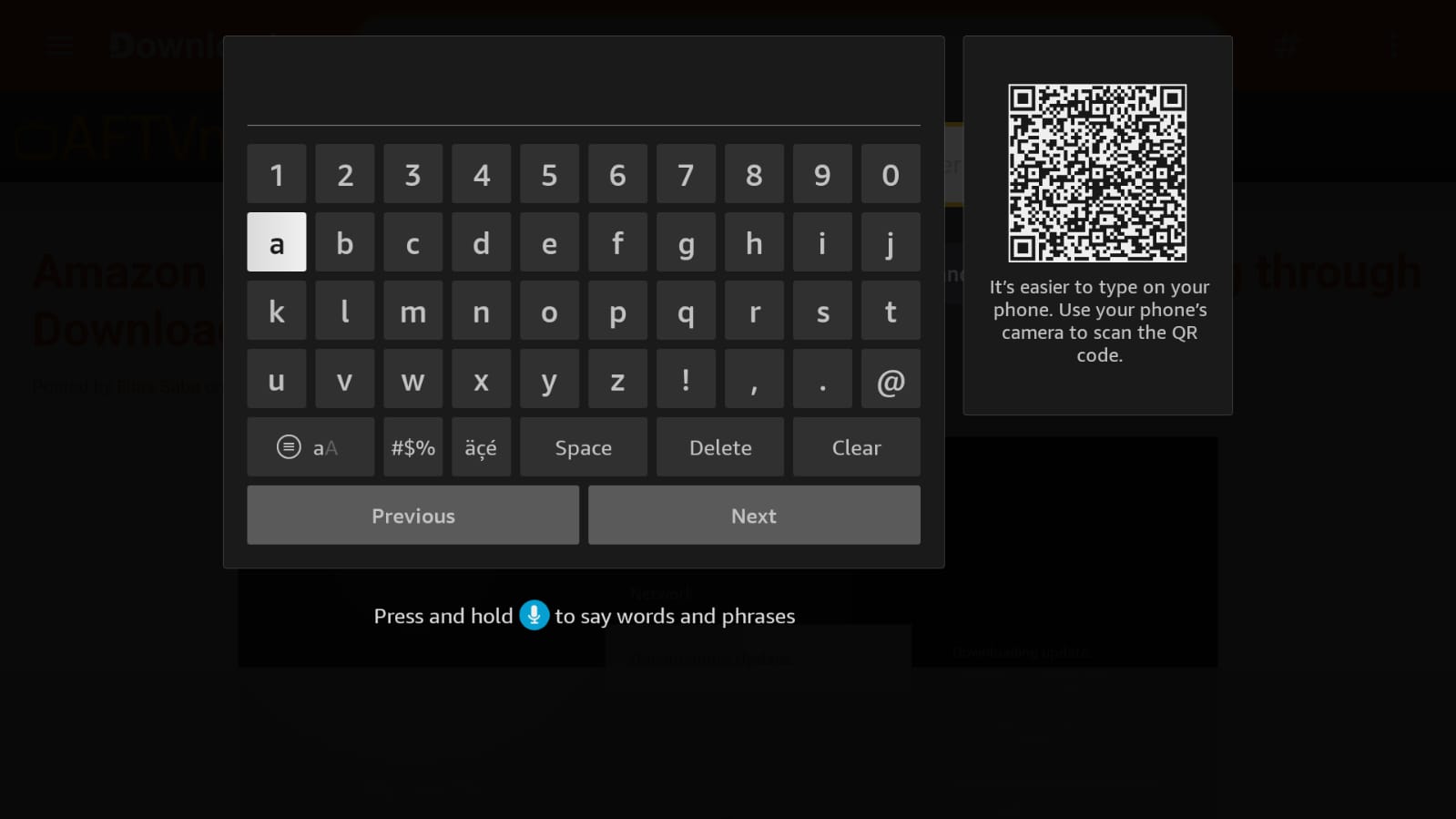
Enter the Downloader Code 1673845 in the URL field, then select the Next button.1673845
Step 9: Wait for the download to finish
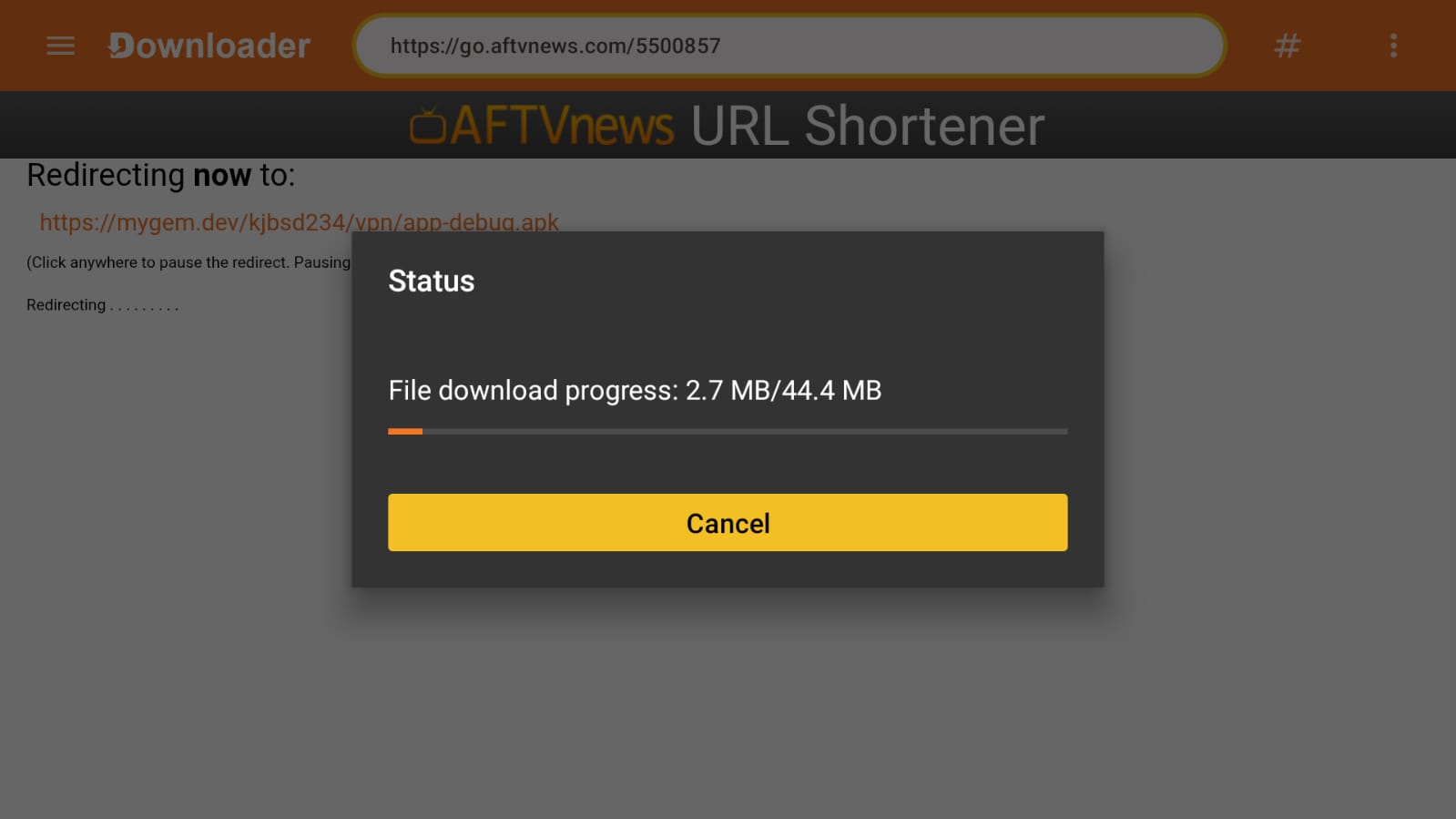
If you entered the URL correctly, the download will begin. Wait until the download is finished.
Step 10: Select Settings
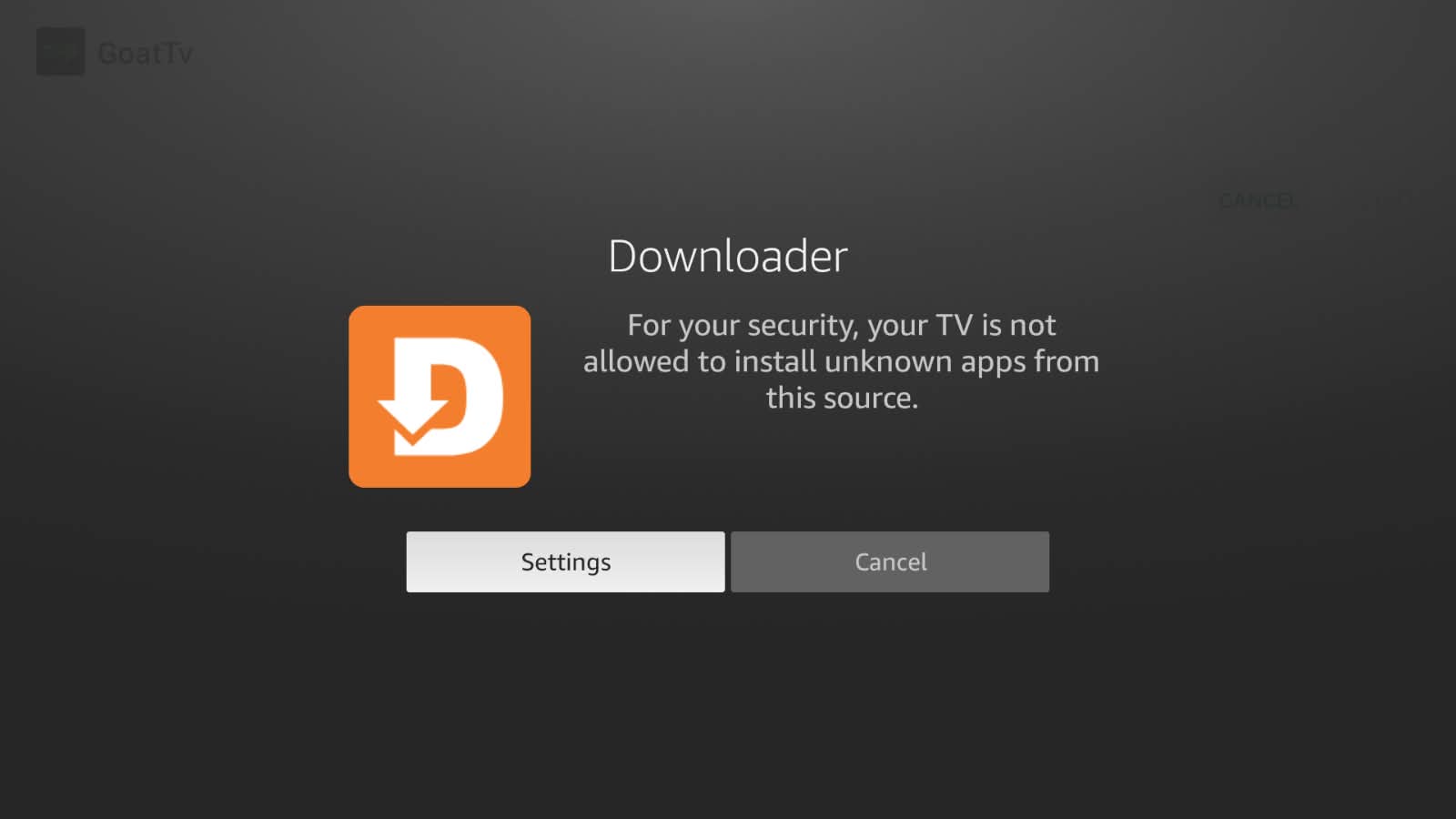
Select Settings from the Downloader app menu.
Step 11: Select Install unknown apps
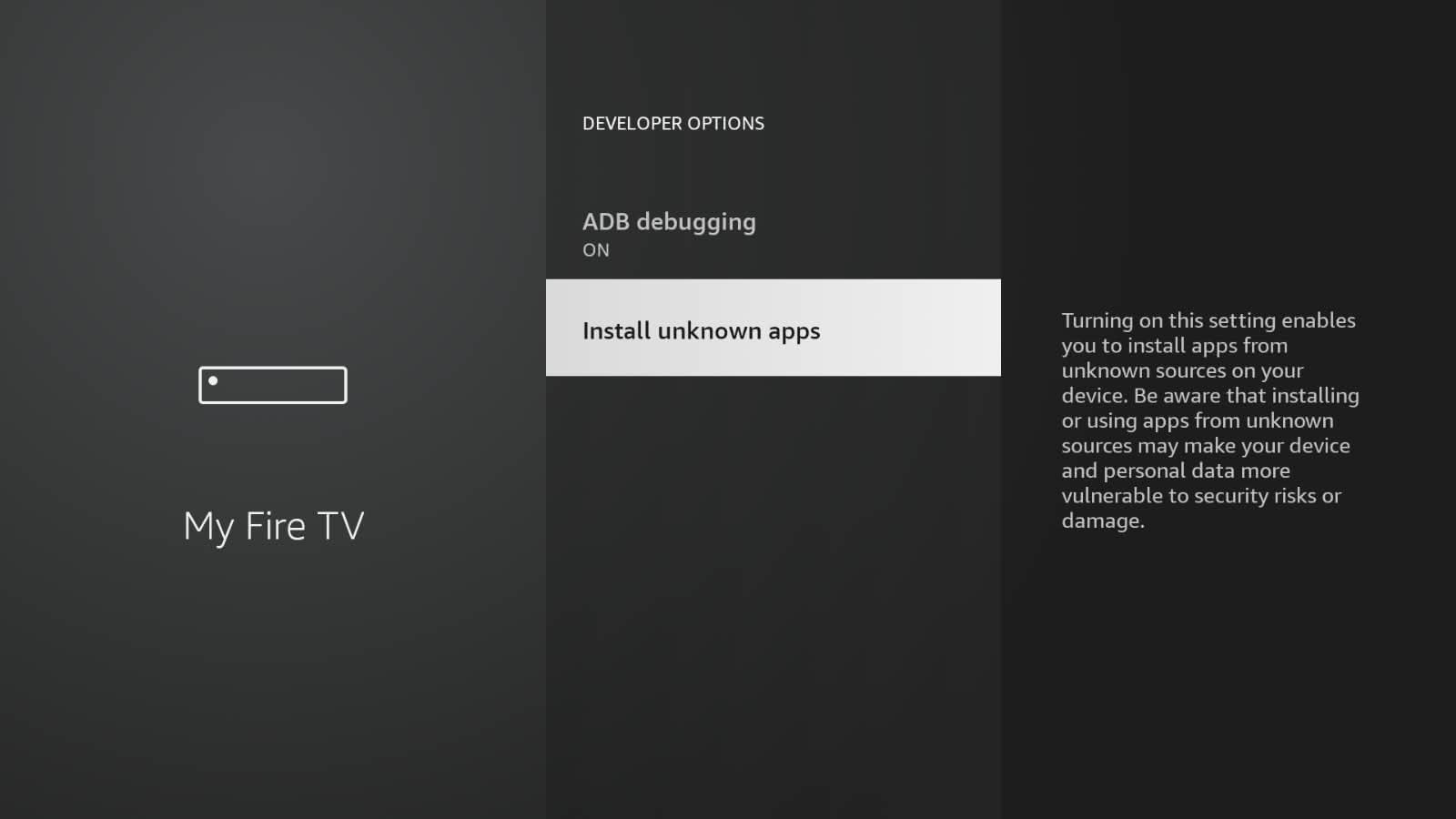
Select "Install unknown apps" from the Settings menu.
Step 12: Turn the install unknown apps ON for the downloader application
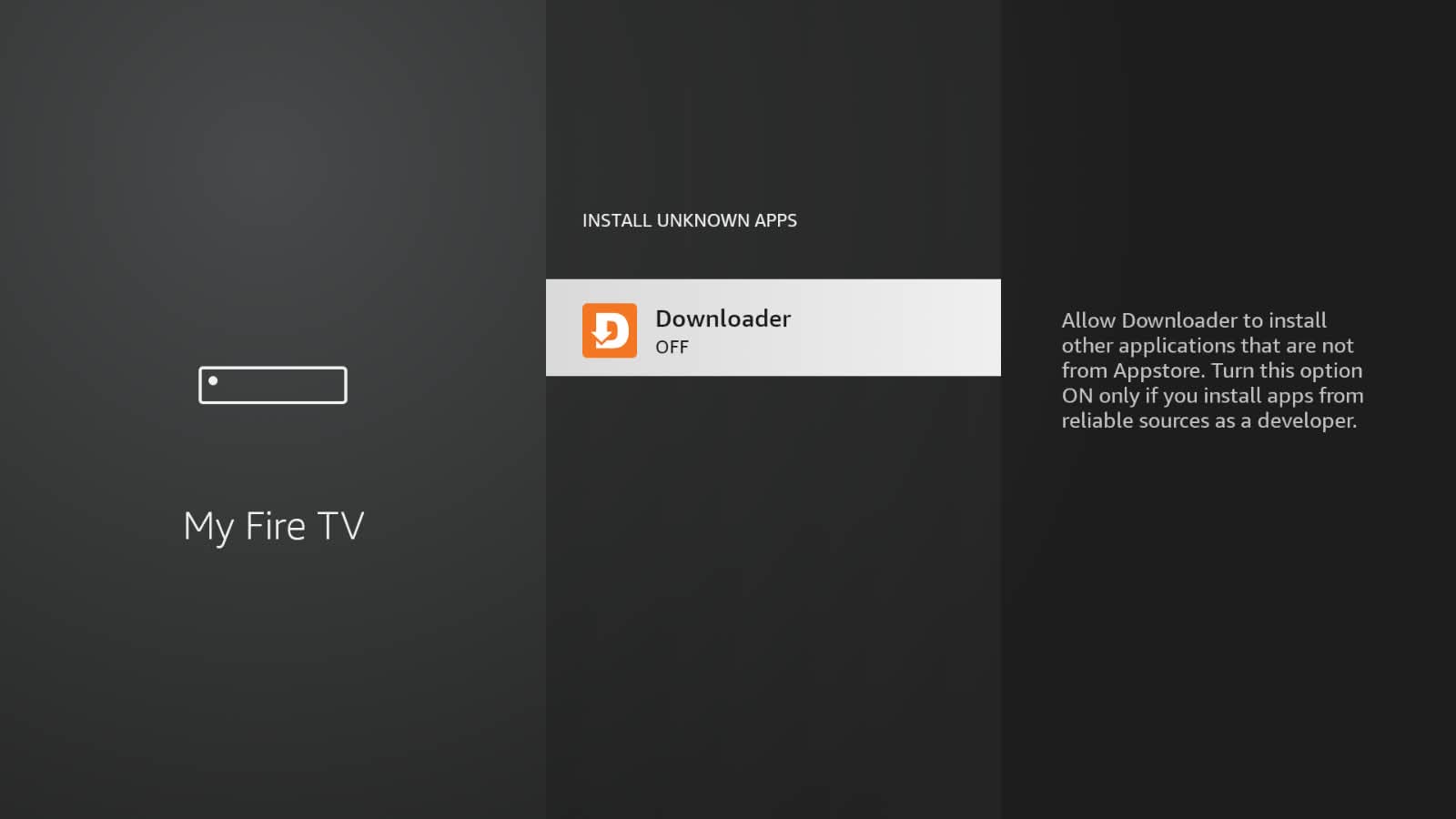
Turn the install unknown apps setting ON for the Downloader application.
Step 13: Press the button on the remote (2) times, then click the install button
Press the back button on your remote twice, then click the install button to proceed.
Step 14: Click Install and install the file you just downloaded
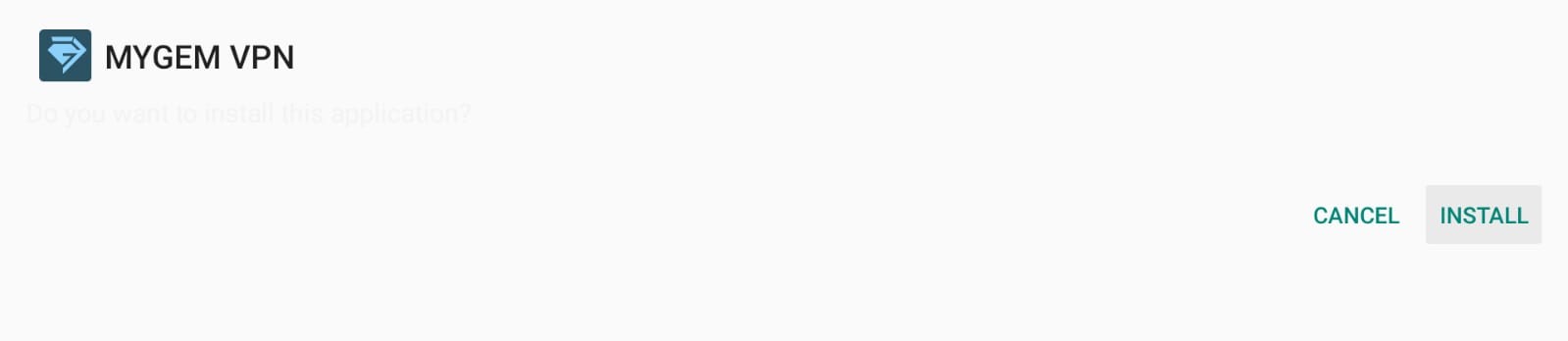
On the next screen, click Install to install the file you just downloaded.
Step 15: Once it finishes installing, click on Open
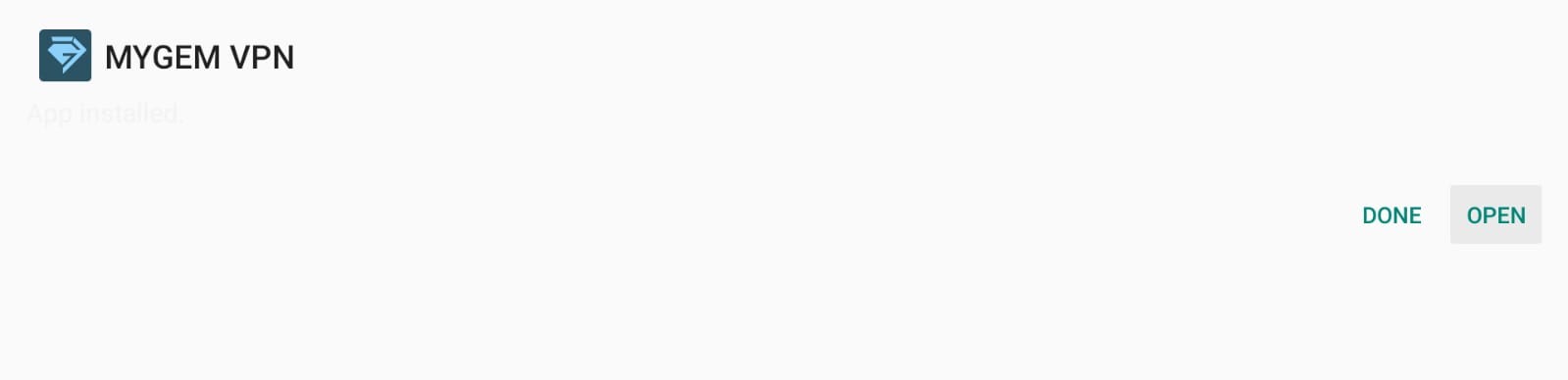
Once it finishes installing, click on Open to launch the MYGEM VPN app.
Step 16: Use your remote to enter your credentials
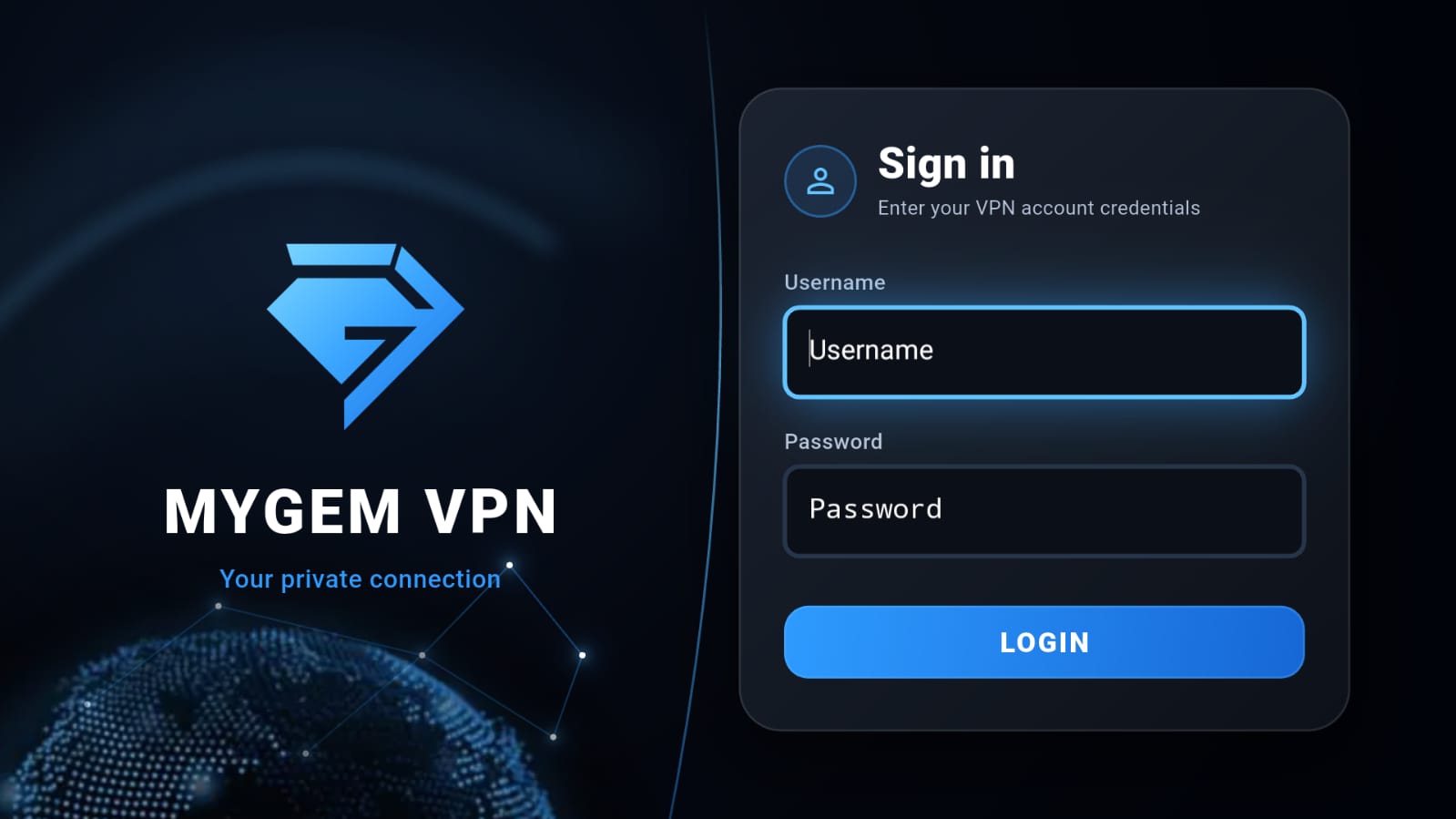
Use your remote to enter your MYGEM VPN account credentials (email and password) to sign in.
Step 17: Choose Server and Connect
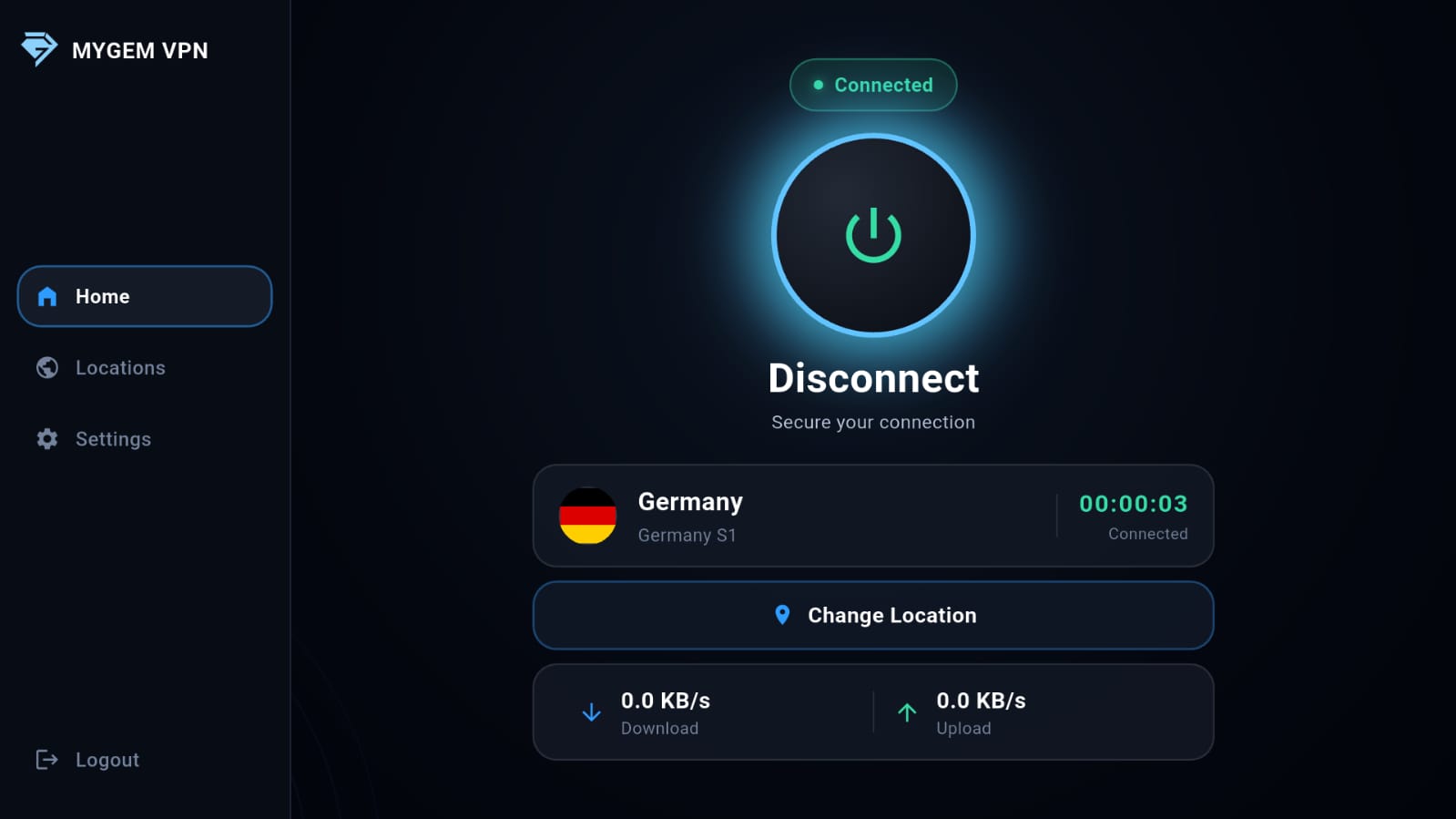
Select a server location from the list and click the Connect button to establish your VPN connection.
Installation Complete!
Your MYGEM VPN app is now installed and connected on your TV. The VPN will remain active as long as the app is running. You can now access geo-restricted content from around the world.