
Installation Guide
Android Mobile & Tablet Installation Guide
Step-by-step installation guide for MYGEM VPN on Android phones and tablets
Last updated: October 27, 2026
Step 1: Download the APK FileClick here to download
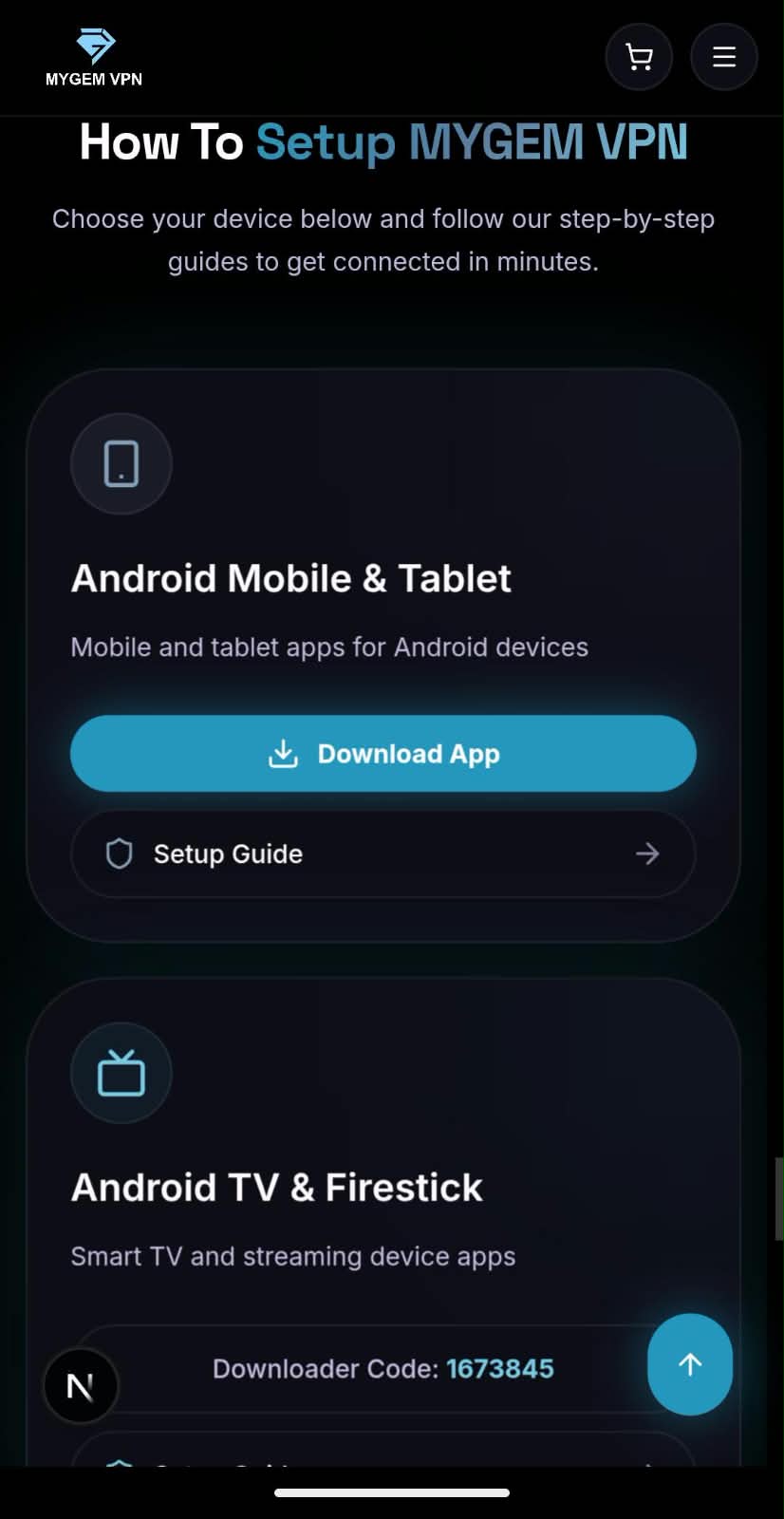
Navigate to the MYGEM VPN download section on this website. Tap the "Download for Android" button. The APK file will begin downloading to your device.
Step 2: Enable Installation from Unknown Sources
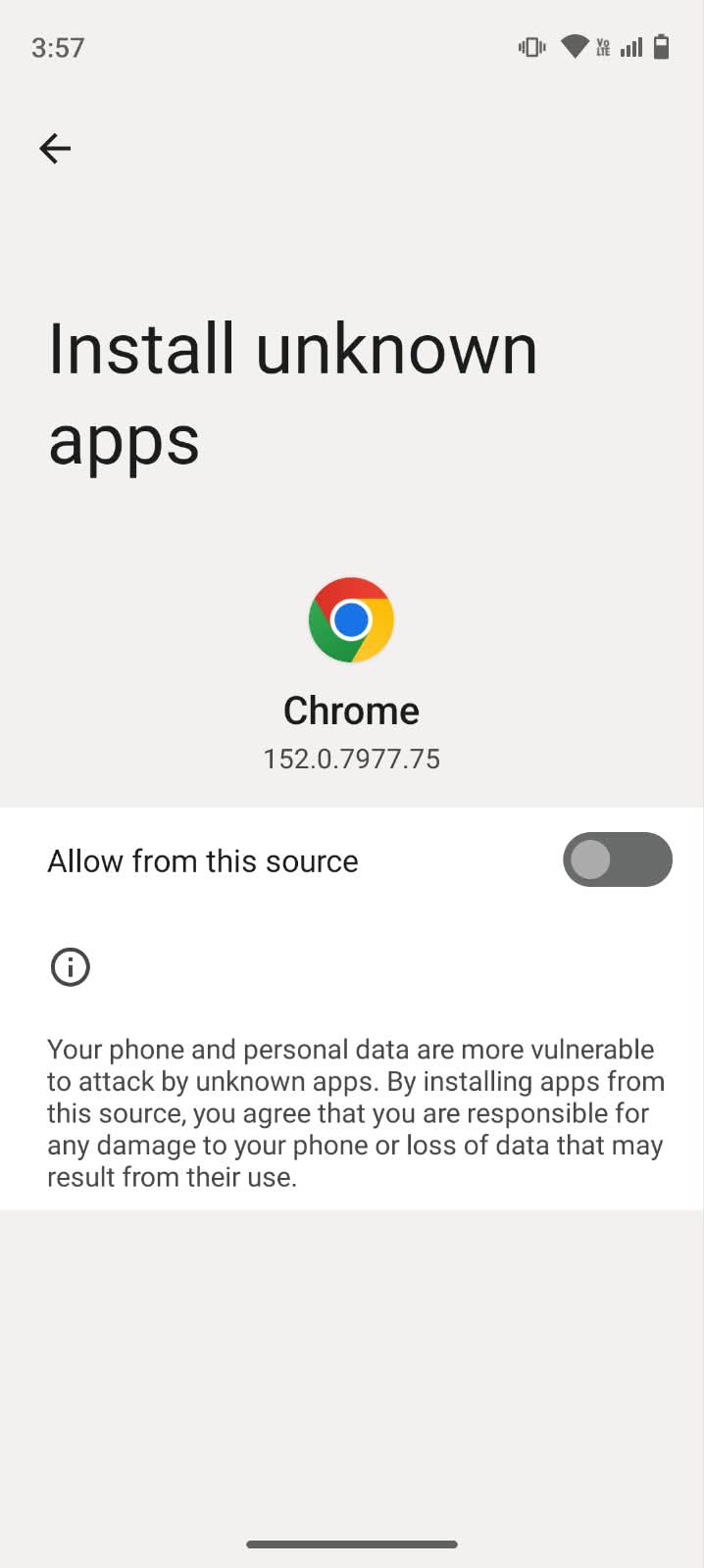
Go to Settings > Security > Unknown Sources and enable it, or for Android 8.0+ go to Settings > Apps & notifications > Special app access > Install unknown apps and allow your browser.
Step 3: Locate and Open the Downloaded APK
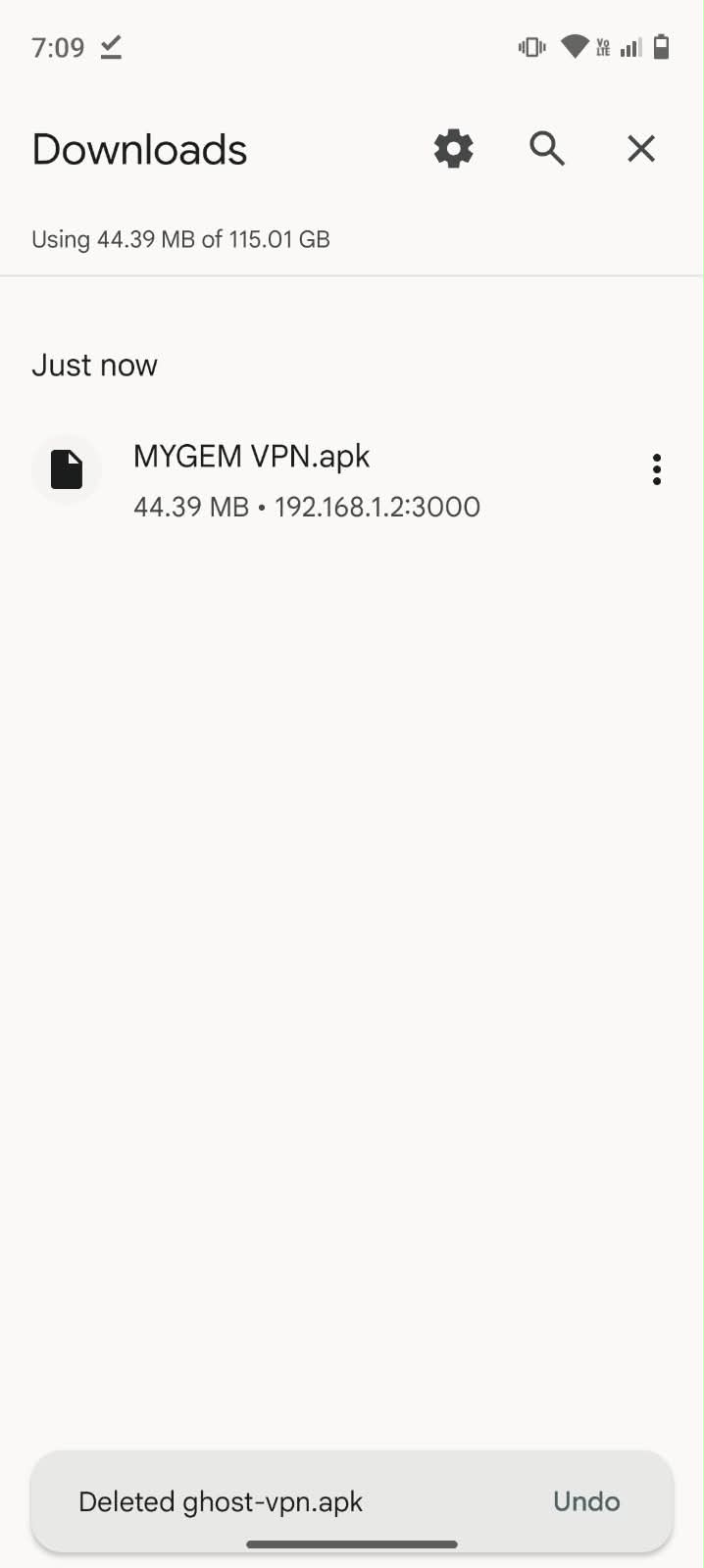
Open your notification panel and tap on the download completion notification, or open your Files app and navigate to the Downloads folder to find the APK file.
Step 4: Install the Application
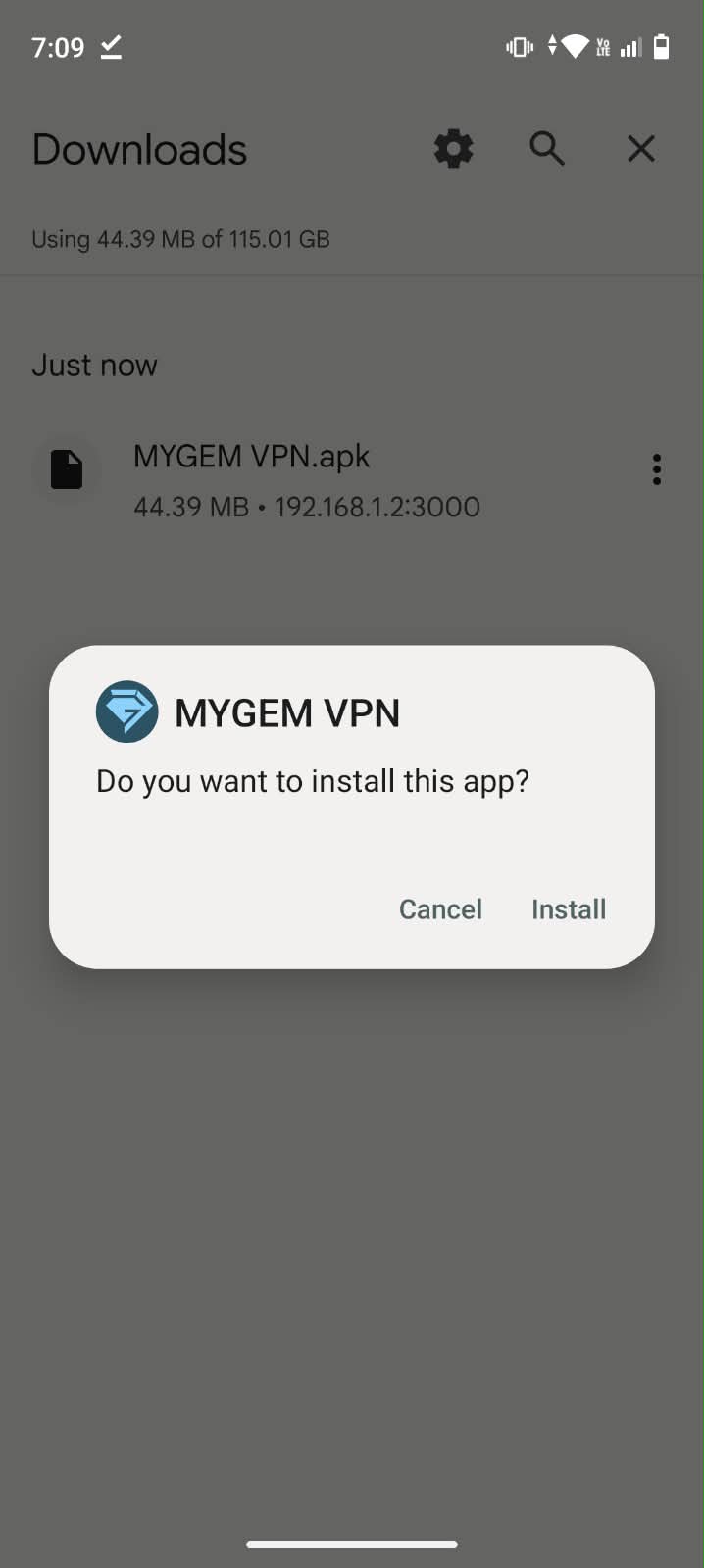
Tap on the APK file to open it. Review the permissions requested and tap "Install" to begin the installation process. Wait for the installation to complete.
Step 5: Launch the MYGEM VPN App
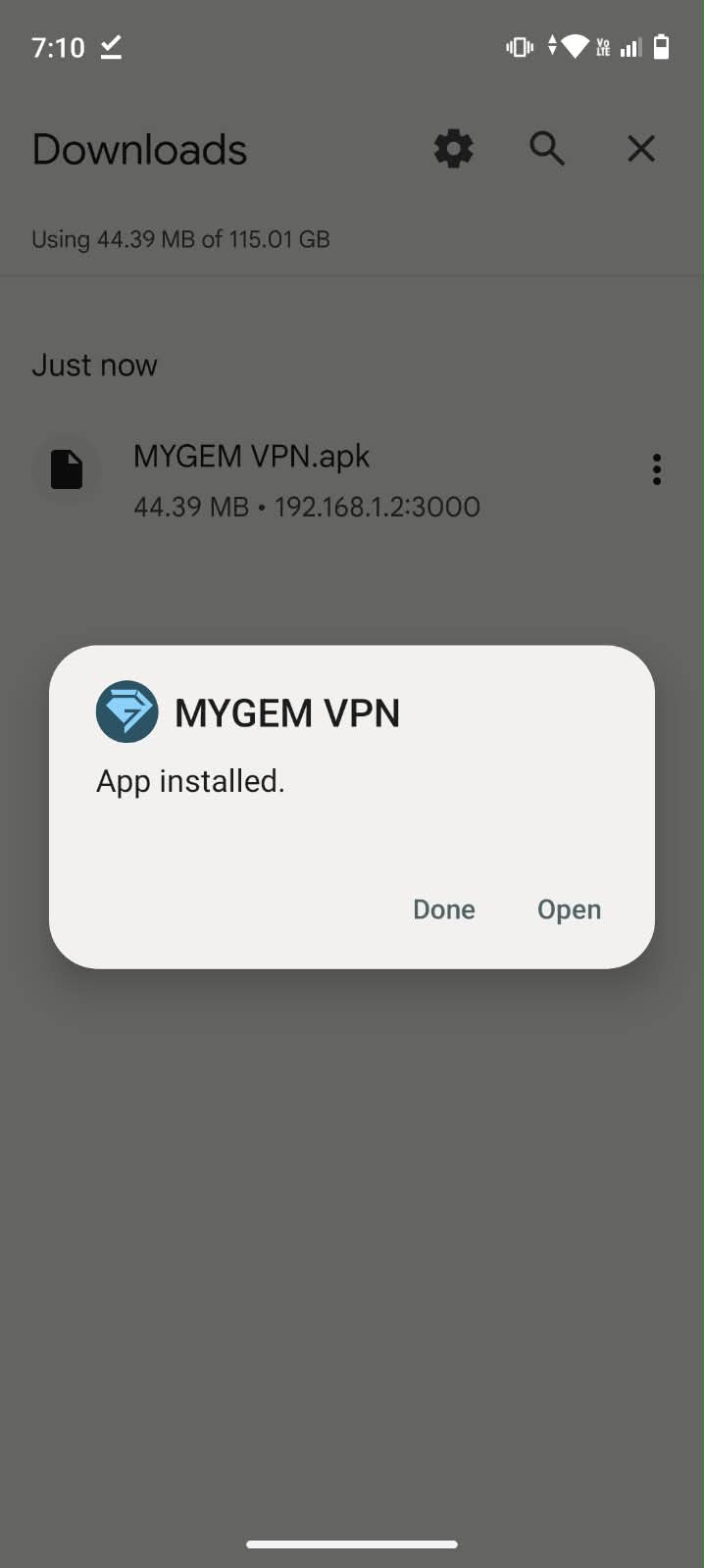
Tap "Open" from the installation completion screen, or find the MYGEM VPN icon in your app drawer and tap it to launch the app.
Step 6: Sign In to Your Account
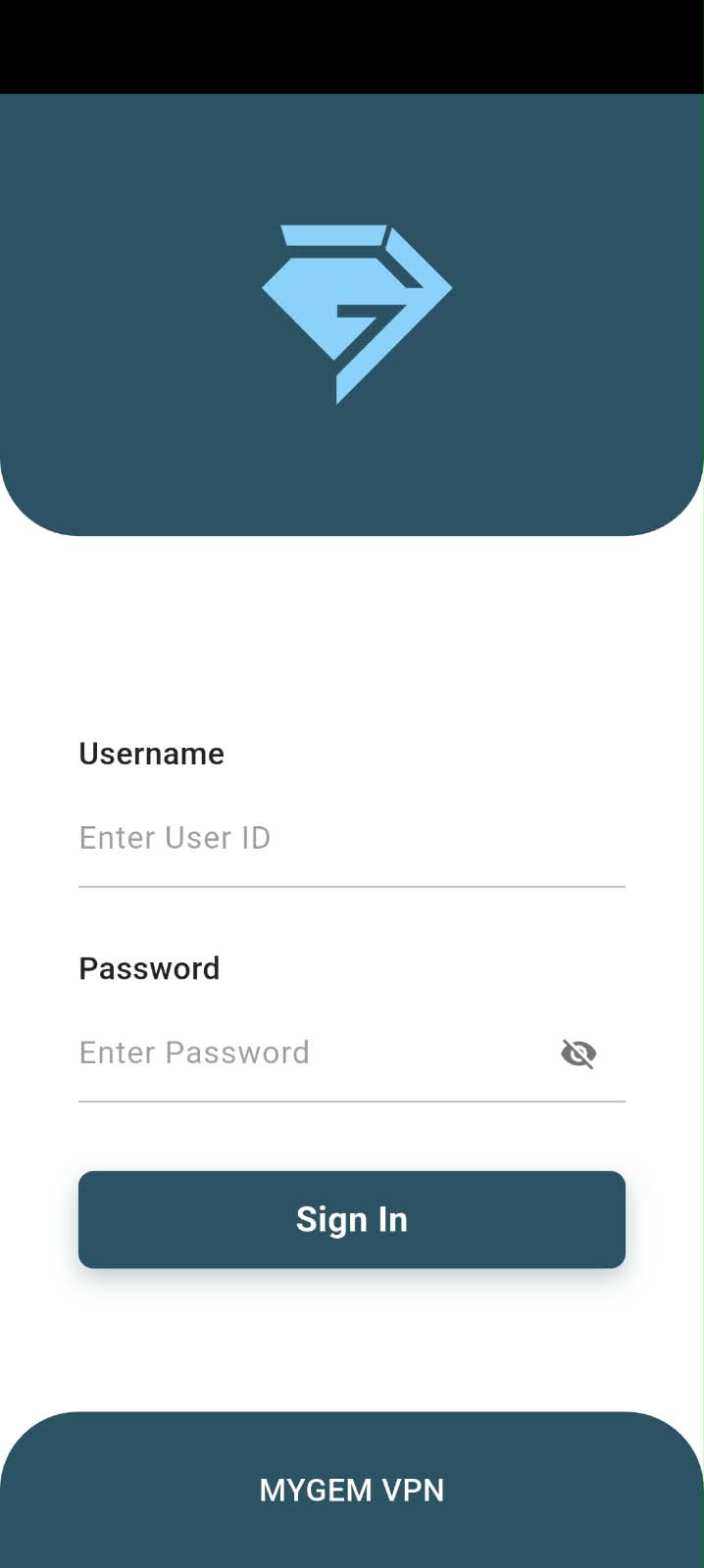
Enter the email address and password you use to access your MYGEM VPN account on the website, then tap the "Sign In" button.
Step 7: Select Server and Connect
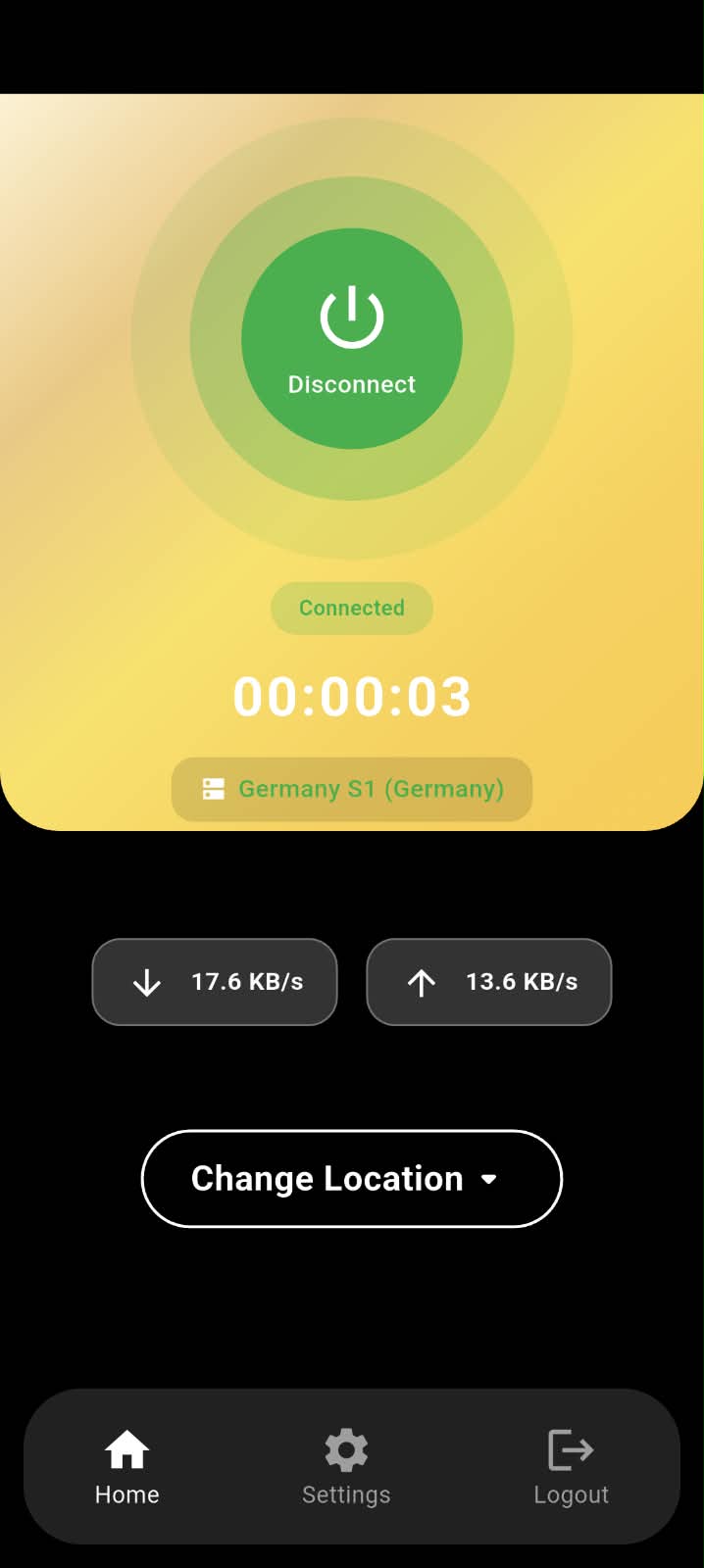
Choose a server location from the available list or use the recommended server. Tap the "Connect" button to establish a secure VPN connection. The button will turn green when connected.
Installation Complete!
Your MYGEM VPN app is now installed and connected. You can leave the VPN running in the background while using other apps. To disconnect, simply tap the "Disconnect" button in the app.